
Calculate teacher payouts from lesson records
Check the teacher rate, the amount for each lesson and the statement total. Follow a real September example: nine lessons at 36 EUR and two cancellations at zero, adding up to 324 EUR.

The statement shows the amount accrued
Publishing the schedule creates the initial teacher accruals. Canceling a lesson makes its row zero. Attendance affects extra-student pay when that feature is enabled. The statement total is a calculation; it does not confirm that the teacher has received the money.
Why does Daniel Harris accrue 324 EUR?
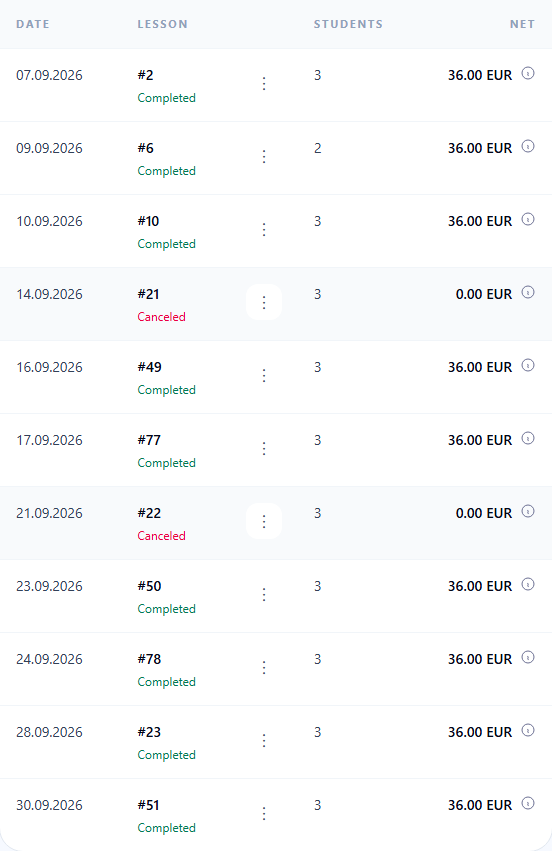
September contains 11 lessons. Two cancellations contribute zero; the other nine accrue 36 EUR each. 9 × 36 = 324 EUR. Do not subtract the canceled lessons again.
Watch a teacher payout statement explained
Follow James Wilson’s 165 EUR statement: group and individual lessons, extra-student pay, a canceled lesson at zero, teacher access and the PDF. This is a separate example from Daniel Harris’s 324 EUR statement below.
Teacher Payout Statements Explained: Group and Individual Lessons
When to check the calculation
Review the lessons and effective rates before paying the teacher or sending a statement.
Check the statement step by step
Daniel Harris teaches English Teens A on the Conversation course. The September 2026 statement contains 11 lessons: nine payable and two canceled. Extra-student pay is zero in this example.
Check the course rate
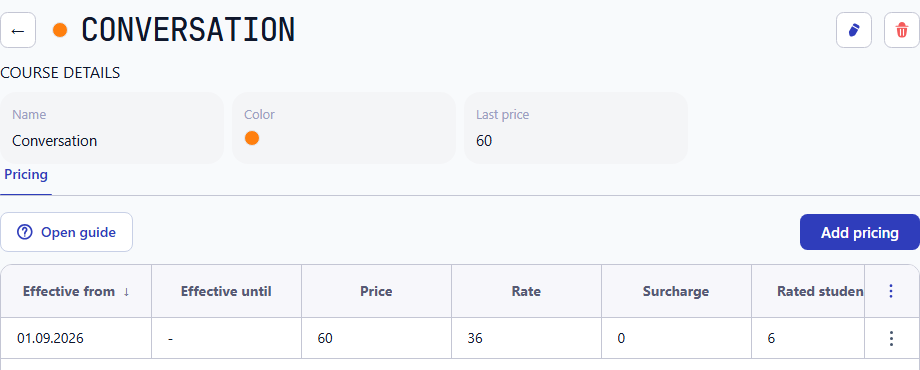
Open Programs & pricing → Courses & prices, then the course. In its price list, check Rate and the effective dates. The student price in this example is 60 EUR; the teacher rate is 36 EUR. These amounts serve different calculations.
- Use the rate effective on the lesson date.
- If teacher categories are enabled, check the teacher’s assigned category and the course price for that category.
- Keep the history of effective periods when changing rates; see the pricing guide.
Open the teacher’s statement for the period
Open Finance → Teacher payouts. Select the teacher and period, then click the statement row. In this example, Daniel Harris’s September 2026 statement shows 324 EUR and nine payable lessons at the top. Below are 11 total lessons and two cancellations.
- Check the teacher and period before reviewing the amount.
- Payable identifies lessons with an accrued teacher amount; it does not mean money has already been transferred.
Compare the lesson rows and cancellations
In the group block, check the dates and the Net column. Each of the nine payable lessons accrues 36 EUR. The lessons on September 14 and 21 are canceled and show 0 EUR. They remain in the history, add nothing to the total and must not be subtracted again.
- If rates or supplements differ, add the row amounts instead of multiplying the total lesson count by one rate.
- Student prices, discounts and payments do not replace the teacher rate.
9 × 36 EUR = 324 EUR
Canceled lessons: 0 EUR + 0 EUR
Total accrued to the teacher: 324 EUR
Open the explanation for a lesson amount
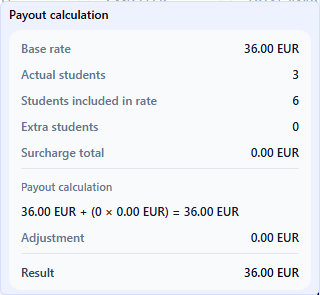
Click the information icon next to the amount in the Net column. Payout calculation shows the rate, actual students present, students included in the rate and the supplement. Three students were present on September 7; six are included in the rate, so the lesson accrues 36 EUR without a supplement.
- Extra-student pay applies only when the feature is enabled and more students attend than are included in the rate.
- Count the students who attended, regardless of whether their own lesson is chargeable or free.
Download or send the statement
Under Document controls, choose Download PDF to check the file or Send payout to email the statement to the teacher. Sending requires the teacher’s email address and the school’s email feature. Check the delivery status afterwards.
- Compare the total and lesson rows before sending.
- Sending the statement does not transfer money or confirm payment to the teacher.
Add the amounts for individual lessons
The statement total is the sum of its lesson rows. A canceled row contributes zero. Different rates, categories or supplements are calculated for each row separately.
With a 30 EUR rate covering two students and 5 EUR for each additional student, three students present give 35 EUR. One or two give 30 EUR. This illustrates the rule separately; the pictured statement has zero extra-student pay.