Skip to content
Workflow guide

Configure course prices so student invoices are calculated automatically

This guide shows how course prices, effective dates, lesson attendance, discounts, payments, and previous balances combine into the final student invoice. The example uses an English course priced at 40 EUR per lesson and a 10% family discount.

Student invoice screen showing lesson charges, discount amount, payments, and final balance
Set the course price used by billable lessons.
Apply a simple student discount from a start date.
Check the invoice calculation: gross charge, discount, final charge, and balance impact.
Quick summary

How pricing affects invoices

Intelligence Cloud calculates student invoice amounts from course prices, lesson dates, attendance, discounts, payments, and previous balances. Each lesson uses the course price that was active on the lesson date.

Example calculation from course price to invoice

Use this as the basic lesson-based billing workflow for language schools, tutoring centers, and other educational centers before adding more advanced billing rules.

Step 1

Start from the course price

The Courses screen shows the price currently used for each course. In this example, English has a student price of 40 EUR and a teacher rate of 24. Student price is the number that creates invoice charges; teacher rate belongs to teacher payout calculation when that workflow is enabled.

  • User enters or reviews the course price.
  • Billing later uses this price for lessons attached to the English course.
  • Teacher payout fields should not be treated as student invoice prices.
Course pricing screen for reviewing student lesson prices before invoice calculation
Step 2

Give the price an effective date

The course profile keeps a pricing history. Here the English price is 40 EUR effective from 01.04.2026. That date matters: billing selects the active price for the lesson date instead of using an arbitrary current value.

  • Effective dates protect historical invoices from accidental changes when prices are updated later.
  • Use Effective from to say when the price starts.
  • Use Effective until only when the price should stop on a known date.
  • If no active price exists for a lesson date, billing blocks the charge instead of guessing.
Course pricing history showing English price 40 EUR effective from 01.04.2026
Step 3

Add or change a price before billing starts

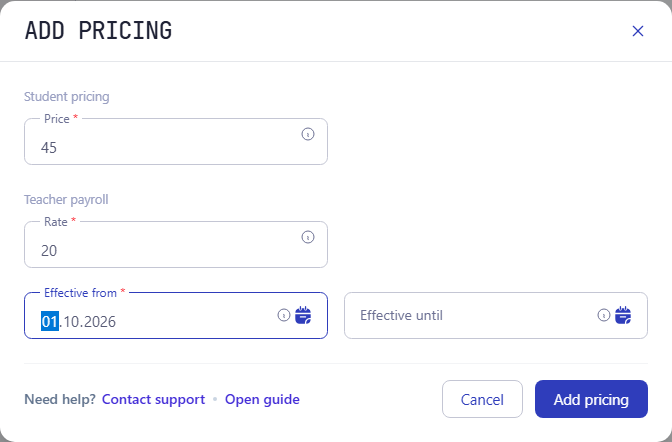
The Add pricing form is where the school enters the student price and the active period. If teacher payouts are enabled, the same form can also show teacher payout fields, but those fields feed a separate payout workflow.

  • Price affects student invoice charges.
  • Rate affects teacher payout calculation when that workflow is enabled.
  • Future-dated price changes can be prepared without changing older lesson calculations.
Add pricing form with student price, teacher rate, effective date, and optional end date fields
Step 4

Apply the discount to the student

A discount template does not change invoices by itself. It has to be assigned to the student or group with a start date. In this example, Stone Alex has Family discount starting from 01.04.2026.

  • Discount percent: 10%.
  • Discount starts from 01.04.2026.
  • Only eligible invoice lines in the discount period receive the discount.
Student discount screen showing Family discount assigned from 01.04.2026
Step 5

Check the invoice math

The invoice shows the calculation instead of hiding it in a final total. English Kids A has 17 lessons, the price per lesson is 40 EUR, and the family discount is 10%.

17 lessons x 40 EUR = 680 EUR gross charge
680 EUR x 10% = 68 EUR discount
680 EUR - 68 EUR = 612 EUR final lesson charge
Student invoice screen showing lesson charges, discount amount, payments, and final balance

Why the final invoice balance can differ from the lesson charge

The final lesson charge in the example is 612 EUR. The invoice balance can still show a different Debt to pay because the student balance also includes previous debt, previous payments, credits, or overpayments. This is why Intelligence Cloud is more than a calculator: it keeps the current pricing calculation connected to the student's financial history.

Current lesson charge: 612 EUR
Student balance also includes previous debt, payments, credits, or overpayments
Debt to pay is the balance result, not only the current lesson charge
General balance model
Invoice balance = previous balance + lesson charges - discounts - payments +/- adjustments

How the calculation works

These reference notes explain how Intelligence Cloud chooses prices and keeps invoice math traceable.

The student price is selected by course and lesson date

When a lesson becomes billable, billing looks at the course attached to that lesson and finds the active student price for the lesson date. The selected price is stored on the charge as the gross amount, together with the price validity date used for the calculation.

  • A new price has a start date and can have an end date.
  • When a newer active price starts, the previous open price is closed.
  • If no active price exists for the lesson date, billing blocks the charge instead of guessing.
  • Changing a price can recover already received lesson and attendance facts for the affected period.

Discounts reduce the invoice amount, not the course price

A discount is applied after the lesson charge is created. The course price remains the gross lesson amount; the discount becomes a separate part of the invoice calculation so the final student balance stays explainable.

  • Only lessons included in the discount base can receive a discount.
  • Discounts can be global for a student or scoped to a group when that option is enabled.
  • Some advanced discount behavior may be available when enabled for your school, but it is not required for the basic workflow.
  • The invoice keeps gross amount, discount amount, and net amount visible separately.

Teacher payout rates are separate from student prices

Some schools only use course prices for student billing. If teacher payouts are enabled, the same pricing area can also contain teacher payout settings. Student price creates invoice charges. Teacher rate, rated students, surcharge, and category rules are used to calculate teacher payouts from completed lessons.

  • Student price answers: how much should the student be charged?
  • Teacher rate answers: how much should the teacher receive for the lesson?
  • Extra-student surcharge can increase payout when that service is active.
  • Teacher category can select a different payout rule without changing student billing.