
How payment details profiles work
Learn how Intelligence Cloud uses payment details profiles so different students can receive different payment instructions in invoice emails and PDFs.
How payment details profiles work
Different students can receive different payment instructions without administrators editing invoices manually.
A training center may not always use one set of payment details for every student. One group may pay to a bank account, another student may use a different recipient, and some schools separate payment instructions by branch, country, program, or payment method.
Payment details profiles are the reusable records behind that process. The school creates payment instruction profiles, assigns the right profile to a student, and Intelligence Cloud uses that profile when invoice emails and PDFs are generated.
When to use payment details profiles
Use payment details profiles when a school needs more than one payment instruction text.
Common examples:
- local and international bank accounts;
- different branches using different recipient accounts;
- separate payment methods such as IBAN, PayPal, or local transfer;
- students who should receive special payment instructions;
- invoice emails that should show different recipient details for different students.
If the whole school uses one payment instruction text, the default company payment details may be enough.
Check that the service is active
Payment details profiles are optional. If the service is active for the school, the Payment details tab appears in Company settings and administrators can create reusable payment instruction profiles.
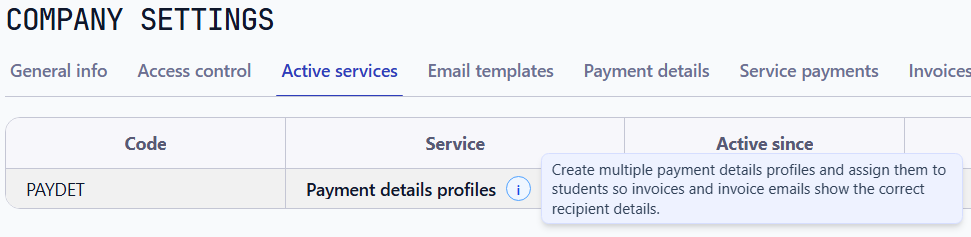
If the service is not active, the school can still use company-level Payment details. The profile-based process becomes available after the service is enabled.
Create payment details profiles
Open Company settings and go to Payment details. This tab contains reusable payment instruction profiles.
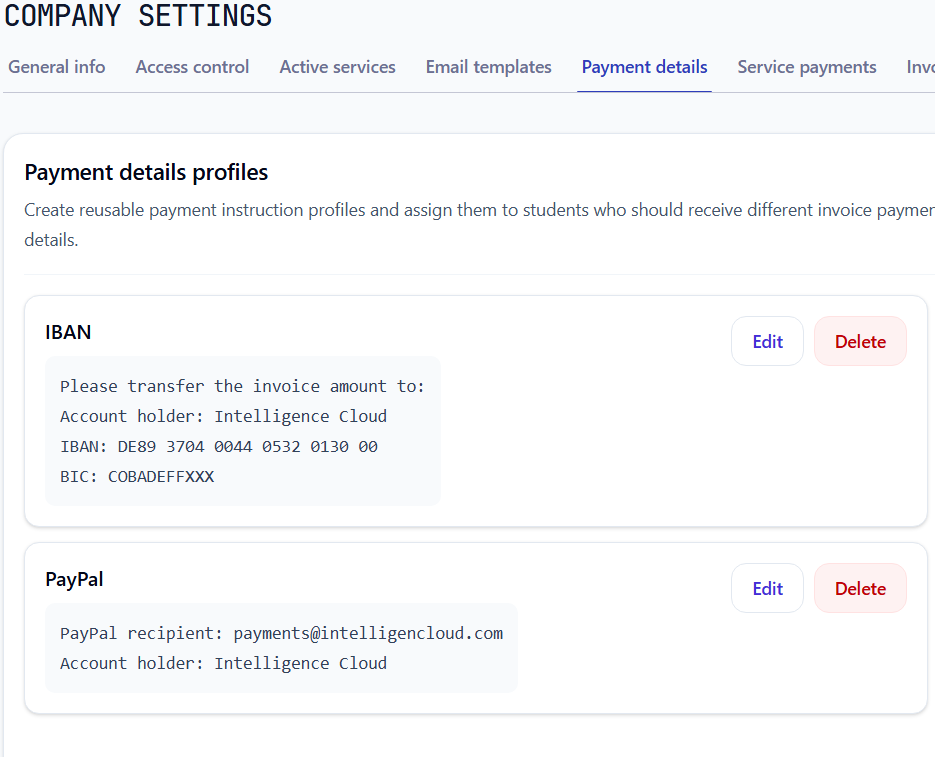
Each profile has two important fields:
- Profile name: an internal name administrators can recognize, such as
IBAN,PayPal,Berlin branch, orInternational students. - Payment details text: the exact payment instructions that should be inserted into invoice emails and PDFs.
For example, the school can create an IBAN profile for bank transfer and a PayPal profile for students who should pay through PayPal.
Edit the payment instruction text
The payment details text should be written exactly as the student should see it.
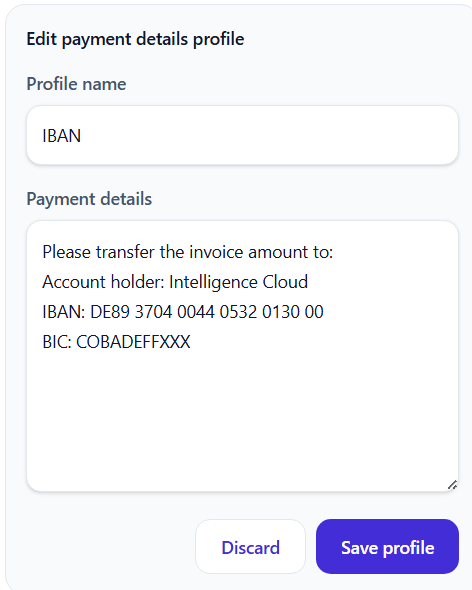
Keep the text practical. Include only the information needed to pay the invoice.
For a bank transfer profile, the text can include:
Account holder: ...IBAN: ...BIC/SWIFT: ...Bank name: ...Payment reference: invoice number or student name
For a PayPal or local transfer profile, use the same idea: write the recipient, payment reference, and any instruction the student needs before paying.
Assign a profile to a student
After profiles are created, assign the correct payment details profile to the student.

Use the field Payment details profile on the student profile:
- Open the student profile.
- Find Payment details profile.
- Select the correct profile, for example
IBANorPayPal. - Save the student profile.
This assignment tells the invoice process which payment details should be used for that student. The administrator does not need to choose payment details again when sending each invoice.
How the invoice PDF uses the profile
When a student has a payment details profile, the PDF invoice shows that profile's payment instructions in the payment details section.
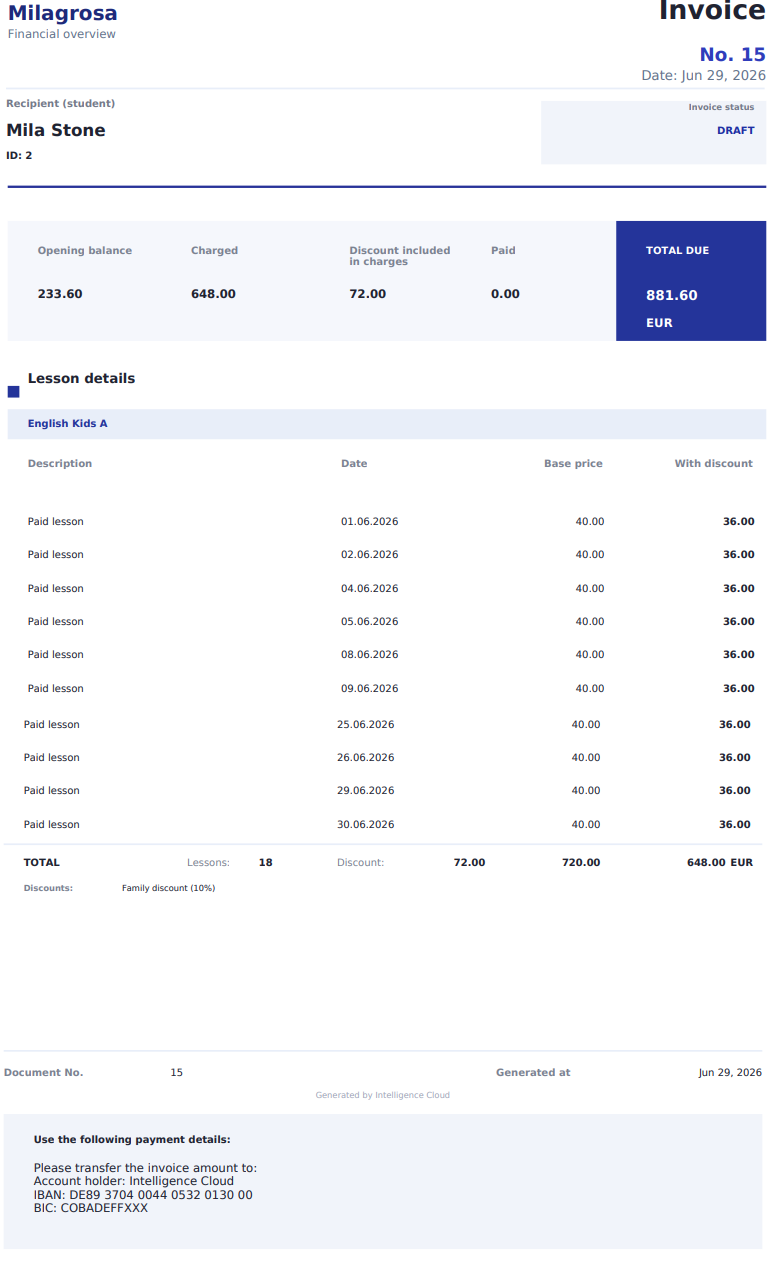
If the student does not have a profile, the system uses the company default payment details.
If the profile is changed after an invoice PDF was already generated, refresh or regenerate the invoice document before sending it. The student should receive a PDF that matches the current student profile.
How the email uses the profile
The same payment details are inserted into the invoice email when the template contains {paymentDetails}.
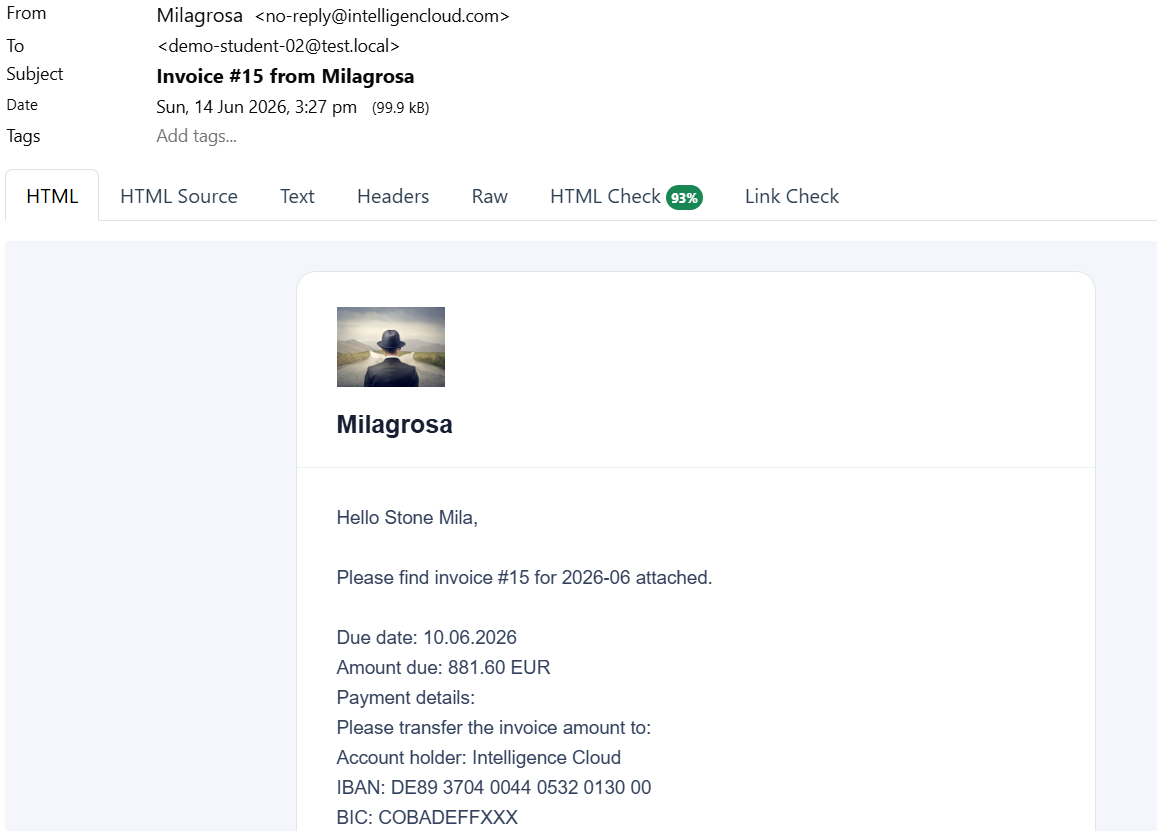
This keeps the email and PDF aligned. The student sees the same payment instructions in both places.
This depends on the invoice email template. If the template does not contain {paymentDetails}, the student's profile may be configured correctly, but the email body will not show those instructions. See how to send student invoices by email for the email template setup.
Which payment details are used?
The payment details used for an invoice follow this order:
- If the student has an assigned payment details profile with payment text, use that profile.
- If no profile is assigned, use the company default payment details.
- If neither is configured, the payment details section is empty and should be fixed before sending invoices.
This order keeps simple schools simple while still supporting more complex payment setups.
Even if most students use profile-specific payment details, keep the company default payment details filled in. It protects simple cases and students who do not have a profile yet.
What administrators should check
Before relying on profiles, check:
- the payment details profiles service is active for the school;
- Company settings -> Payment details is configured;
- each Payment details profile -> Payment details text is filled in;
- students who need special instructions have Student profile -> Payment details profile selected;
- the invoice email template contains
{paymentDetails}; - the PDF shows the expected payment details before sending.
Troubleshooting
Why does the invoice show company default details?
The student may not have a payment details profile assigned, or the assigned profile may not contain payment details text.
Why are payment details missing in the email?
Check that the email template contains {paymentDetails} and that either the student profile or company default payment details are filled in.
Can one profile be reused for many students?
Yes. A profile is reusable. If many students should receive the same payment instructions, assign the same profile to all of them.
Should payment details profiles change the invoice amount?
No. Payment details profiles only control payment instructions. They do not change lesson charges, discounts, payments, or balance calculation.
Related materials
- How to send student invoices by email
- How automatic payment allocation works
- Student invoices and balances
Result
Payment details profiles let a school send correct payment instructions without manual invoice editing.
The administrator sets up reusable profiles once, assigns them to students, and the invoice email and PDF use the right payment details automatically.
Related resources
How student payments are matched with invoices and balances
Learn how student payments are matched with invoices, previous debt, partial payments, overpayments, credit, and student balances in training center billing.
How to send student invoices by email
Learn how Intelligence Cloud sends student invoice PDFs by email, uses invoice due dates, and inserts school payment details into the message.
Student fee and payment tracking for training centers
Practical guide to tracking student fees, payments, invoices, unpaid balances, previous debt, overpayments, and credit in training centers, language schools, and tutoring businesses.
Student Billing Software for Training Centers
Learn how training centers and language schools can create student invoices, record payments, track unpaid balances, and connect billing with lessons and attendance.