
How to send student invoices by email
Learn how Intelligence Cloud sends student invoice PDFs by email, uses invoice due dates, and inserts school payment details into the message.
How to send student invoices by email
Many training centers already calculate student invoices in one place, but still send them manually through email. That is where small mistakes happen: the wrong PDF is attached, the amount is outdated, the due date is unclear, or payment details are missing.
In Intelligence Cloud, invoice delivery is built around the invoice PDF. The administrator prepares or reviews a draft invoice, sends it from the invoice profile, and the email includes the invoice summary, due date, amount due, payment details, and the attached PDF.
This guide explains what needs to be configured before sending invoices and what the administrator should check after sending.
What this workflow solves
Without a controlled invoice email workflow, administrators often copy amounts into messages manually, attach PDF files by hand, or send different payment instructions to different students.
That creates several risks:
- the amount in the email does not match the invoice;
- the due date is unclear;
- the payment details are missing or outdated;
- the school cannot easily see whether the invoice was already sent;
- the student receives a message that does not look connected to the school.
Invoice email delivery keeps these pieces connected to the invoice record.
Configure company defaults first
Open Company settings and check the general invoice settings. The company profile defines the currency, local date format, invoice due date rule, and the Payment details text used as the company default.
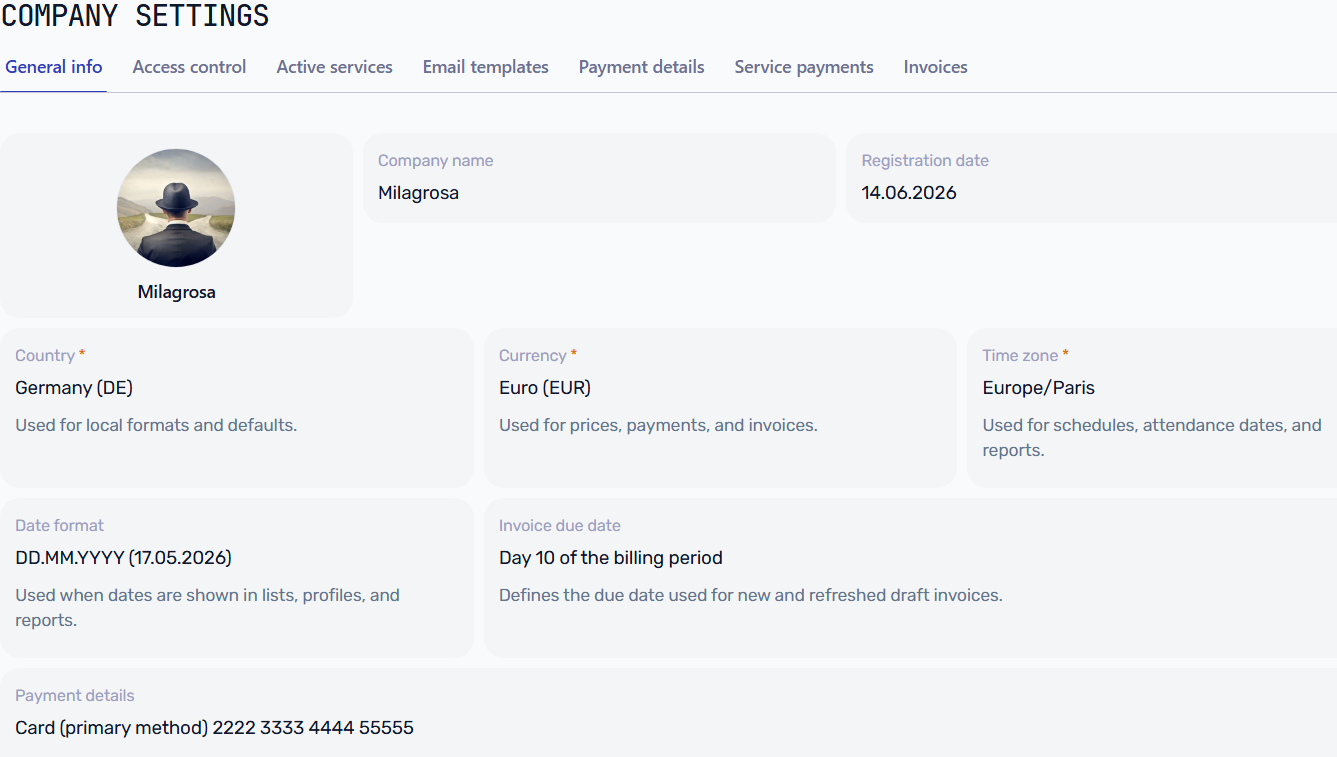
Check these fields before sending invoices:
- Currency: the currency that appears in invoice totals, email text, and the PDF.
- Date format / locale: the format used for invoice dates and due dates.
- Invoice due day or Invoice due date rule: the day that should become the invoice due date.
- Payment details: the company-level payment instruction text used when the student does not have a separate payment details profile.
For example, if Invoice due day is set to 10, a June 2026 invoice can show a due date such as June 10, 2026. If the rule is changed after draft invoices already exist, refresh or recalculate those invoices before sending them.
The Payment details field should contain the text a student can actually use to pay: bank account, IBAN, recipient name, payment reference, or other school instructions. If a student has a specific payment details profile, that profile overrides the company-level text. See student payment details profiles for that setup.
Configure the invoice email template
The invoice email template controls the subject and message body sent with the PDF. Before sending the first invoice, open the shared email template editor and select Student invoice. The complete setup, including every available placeholder, is covered in how to configure email templates.
For this workflow, confirm that the subject identifies the invoice and that the message includes the amount due, due date, and {paymentDetails} where students expect payment instructions. If {paymentDetails} is missing from the message body, the instructions can still appear in the PDF but not in the email text.
Send the invoice from the invoice profile
Open the student invoice and review the calculation before sending. The invoice profile shows the invoice status, amount due, document controls, and delivery status.
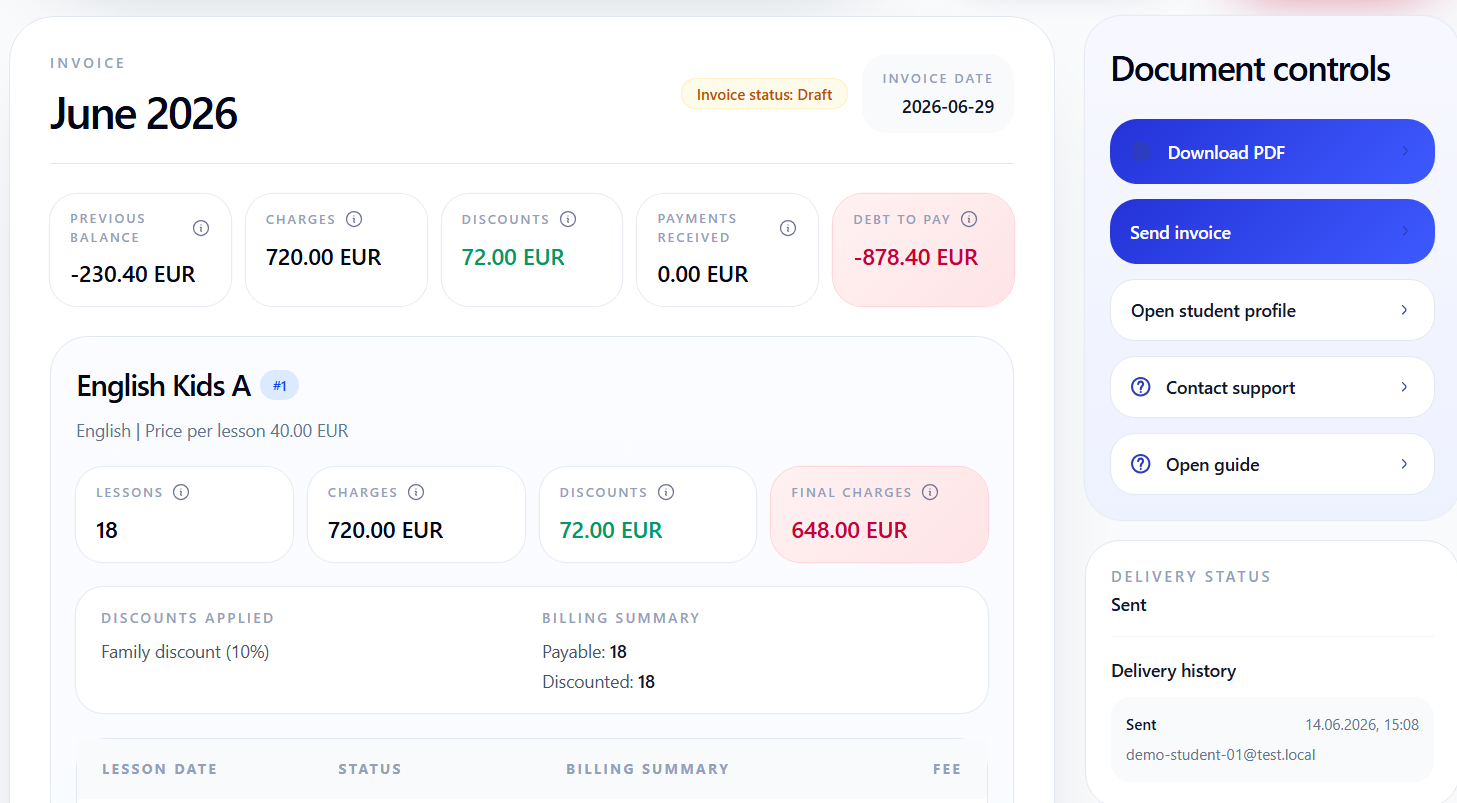
Before clicking Send invoice, check:
- Student email: the student or parent email address is present and correct.
- Amount due: the invoice total is explainable from lesson lines, discounts, payments, and previous balance.
- Due date: the date matches the school's payment policy.
- Payment details: the PDF preview shows the expected payment instructions.
When the administrator clicks Send invoice, Intelligence Cloud sends an email to the student's email address and attaches the invoice PDF.
After a successful send, Delivery status and Delivery history are updated. This helps the team see which version was sent and avoid sending the same invoice again without noticing.
What the student receives
The student receives an email from the school name with the invoice PDF attached.
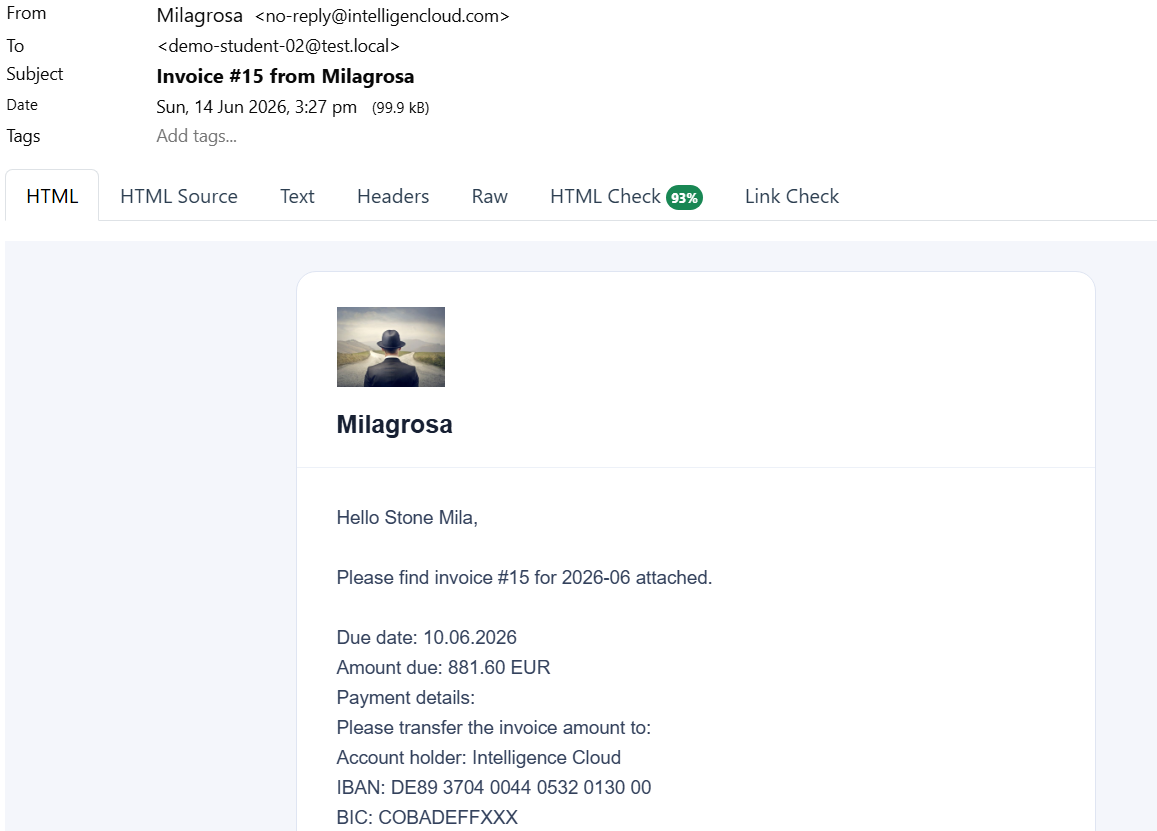
The email body should make the next action obvious:
- which invoice was sent;
- which billing period it belongs to;
- when payment is due;
- how much is due;
- which payment details should be used;
- that the PDF invoice is attached.
What happens to invoice status
Invoice delivery is separate from invoice calculation.
A draft invoice can change when lessons, attendance, discounts, payments, or previous balance are updated. Sending the invoice records that the current version was delivered to the student, but it does not freeze every future correction.
In practice:
- Sent means that this invoice version was delivered to the student.
- It does not mean the invoice can never change.
- If the invoice amount, due date, or payment details change later, review the updated invoice and send it again when the student should receive the new version.
This matters for schools that send preliminary invoices before the end of the month. If the invoice changes later, the administrator should review and send the updated version again when needed.
Payment details in the email and PDF
The {paymentDetails} placeholder uses the payment instructions that apply to the student.
The system chooses the text in this order:
- If the student has a payment details profile, use the text from that profile.
- If the student does not have a profile, use Company settings -> Payment details.
- If neither field is filled, the payment details area is empty and should be fixed before sending invoices.
For a simple setup, the company default payment details are enough. For schools that need different bank accounts or payment methods for different students, use payment details profiles. That setup is explained in student payment details profiles.
What this does not solve
Invoice email delivery sends the invoice and records the delivery attempt, but it is not the same as payment collection.
It does not guarantee that the student read the email, paid the invoice, or used the correct payment reference. Payments still need to be recorded, allocated, and checked against the student balance. If the invoice changes after it was sent, the administrator should review the updated version and send it again when the student needs the new PDF.
Checklist before sending invoices
Before sending invoices, check:
- company name and logo are correct;
- Company settings -> Payment details is configured;
- Invoice due day or Invoice due date rule matches the school's policy;
- Student email is filled in on the student record;
- the invoice amount is explainable;
- the email template contains
{dueDate},{amountDue}, and{paymentDetails}where needed; - the PDF opens and shows the expected payment instructions.
Troubleshooting
Why are payment details missing?
Check company payment details first. If the school uses payment details profiles, also check which profile is assigned to the student.
Why is the due date different from expected?
Check the invoice due date rule in company settings. Existing draft invoices may need to be refreshed or recalculated after the rule is changed.
Why did the email text not change?
Check that the correct invoice email template was saved before sending. If the invoice was already sent before the template change, send it again to deliver the updated text.
Related materials
- How to configure email templates
- How payment details profiles work
- Student billing software for training centers
- How to test training center billing before going live
- Student invoices and balances
Result
Invoice email delivery connects the student invoice, email text, payment instructions, and PDF attachment.
The administrator does not need to retype invoice details manually, and the student receives a clearer message with the amount, due date, and payment instructions in one place.
Related resources
How to test training center billing before going live
A practical checklist for testing lesson-based billing in a training center before using invoices, payments, discounts, and balances with real students.
How student payments are matched with invoices and balances
Learn how student payments are matched with invoices, previous debt, partial payments, overpayments, credit, and student balances in training center billing.
How payment details profiles work
Learn how Intelligence Cloud uses payment details profiles so different students can receive different payment instructions in invoice emails and PDFs.
Student Billing Software for Training Centers
Learn how training centers and language schools can create student invoices, record payments, track unpaid balances, and connect billing with lessons and attendance.
How to Configure Email Templates for Invoices and Access Invitations
Step-by-step instructions for customizing student invoice emails, student portal invitations, and staff access invitations in Intelligence Cloud.