
Configure on-time payment discounts for students
Set a payment deadline and understand why an on-time payment discount is included in or removed from a student's invoice.
If your school offers a discount for paying on time, set the payment condition on the discount itself. For example, payment for the month must arrive on or before the 10th. Assign the discount to the student. The system checks the condition when calculating their invoice.
Receiving a payment is not enough: a positive part of it must be allocated to the same billing month. A payment used entirely to settle an earlier balance does not qualify the student for the new month's discount.
Set the payment condition
Your school needs the payment-dependent discount service to use this setting. The owner can check Active services. Discounts without a payment condition are handled separately.
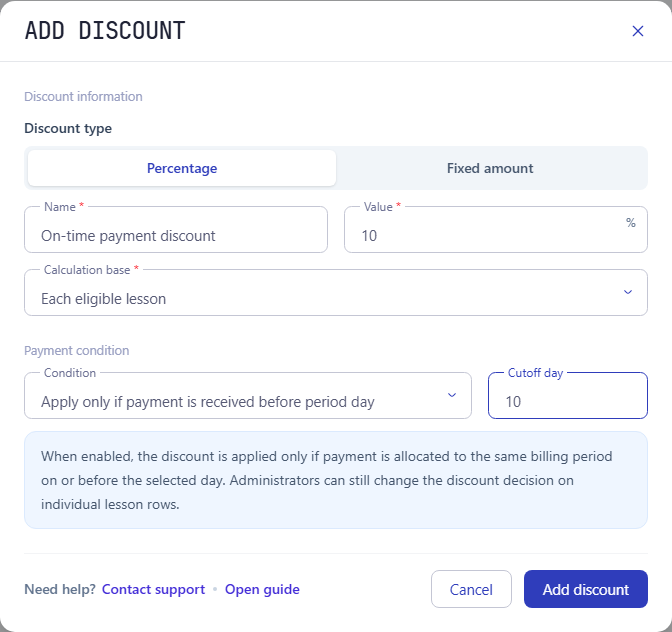
- Open Programs & Pricing → Discounts and select Add discount. To change an existing discount, open it and choose Edit.
- Enter its name and value, then choose the calculation base and apply rule.
- Under Payment condition, select Apply only if payment is received before period day.
- Enter a Cutoff day, for example 10.
- Save the discount. If you change the terms of a discount that is already assigned, confirm the billing period from which the changes should apply.
The cutoff applies to each billing month: 10 September for September, 10 October for October. The selected day is included. If the day does not exist in a shorter month, the last day of that month is used.
Assign the discount to a student
Open Discounts in the student's profile and add an assignment. Choose the discount and its start date, and an end date if needed. You can limit it to one group or one course; the recipient is still the individual student.
The cutoff belongs to the discount's terms, rather than to each student's assignment. Assignment dates determine which lessons can receive the discount. Follow the discounts guide for the assignment steps.
Before and after the deadline
Up to and including the cutoff day, the discount is included provisionally: the system does not yet exclude it because payment is missing. Seeing a discount on an invoice on the 5th or 10th does not prove the student has paid.
After the cutoff day, the discount remains eligible if a positive payment amount is allocated to that billing period and the payment date is on or before the deadline. Without such an allocation, the conditional discount is excluded from the calculation.
This rule does not require the invoice to be paid in full or a minimum payment amount. A positive part of a payment allocated to the period is enough. It checks payment timing, not whether the student's balance is zero.
Example: one payment covering two months
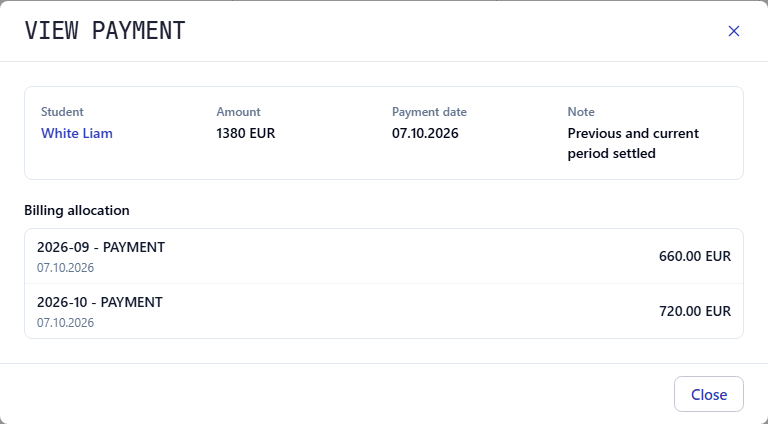
Liam's payment is dated 7 October 2026 and totals 1380 EUR. Of that amount, 660 EUR is allocated to September and 720 EUR to October.
Suppose Liam has a discount with a cutoff day of 10. The same payment meets the condition differently for the two months:
- September 2026: 660 EUR is allocated to September, but the 7 October payment is after the inclusive 10 September deadline. This payment does not qualify for September.
- October 2026: 720 EUR is allocated to October, and the 7 October payment is before the inclusive 10 October deadline. This payment qualifies for October.
Another payment might have qualified for September, so check all allocations for that month. Meeting the payment condition does not assign a discount automatically: the student needs an active assignment and eligible lessons. Check the applied discount amount on their invoice.
Check payment allocation and the invoice
Open Payments, find the student's payment, and check its date. In the allocation details, check which billing month receives the money. The date staff entered the record can differ from the payment date; the condition uses the payment's own date.
If the payment first settled an earlier balance, check whether a positive amount was left for the current period. A payment record without that allocation is not enough.
Open the student's invoice for the month and check discounts, charges, and received payments. Expand the lesson rows to see how individual charges contribute to the total. See the payments guide and invoices guide.
What “Apply discount” means for a lesson
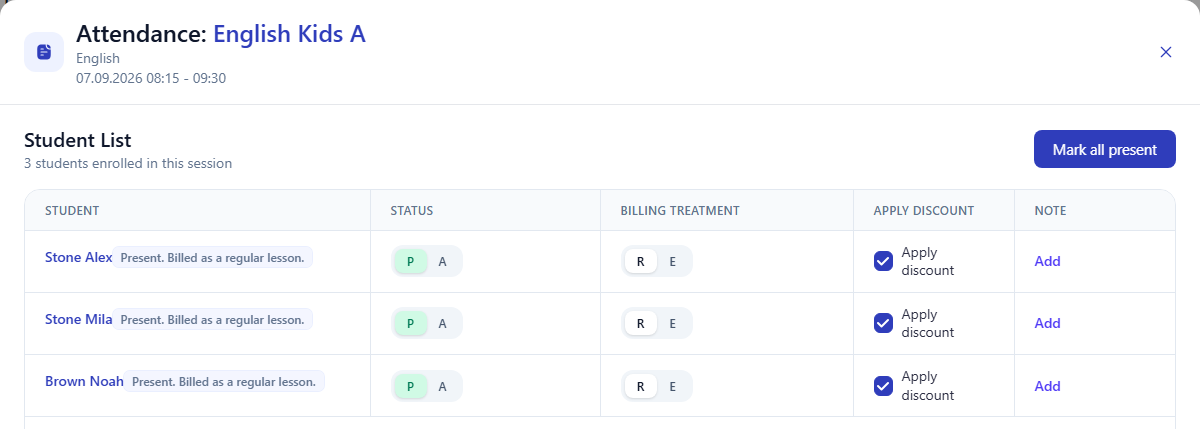
The Apply discount checkbox in attendance allows a lesson to participate in discount calculation. It does not override the payment condition: an on-time payment discount is still excluded if the condition is not met, even when the checkbox is selected.
The automatic payment check does not select or clear this checkbox. If you manually exclude a lesson, an on-time payment will not include it again. Discounts without a payment condition are evaluated separately from conditional discounts.
If the result is unexpected
The discount appears before the student has paid
Check the date first: through the cutoff day, the discount is provisional. After the deadline, check payment allocations: part of an on-time payment may have reached the current month. Also check for a separate discount without a payment condition.
The student paid on time, but there is no discount
Check the payment date, allocated month, and active discount assignment. Paying an earlier balance does not qualify for the new month's discount. The relevant lessons must also be allowed to participate in discount calculation.
You recorded the payment later, but it arrived before the deadline
Use the actual payment date. When payments and calculations for an open period are updated, the condition is checked using that date, rather than only the record's entry date. Check the allocation and updated invoice afterwards.
A closed month's invoice did not change
The automatic check runs for open billing periods. It does not recalculate a closed period when a new payment is entered.
Try your school's payment terms
Before using the condition, check the discount assignment, cutoff day, payment date, and allocated month. These four values explain most differences between the discount you expect and the discount shown.
Related resources
Training center invoice checklist before going live
Check course prices, attendance, discounts, previous balances and payments against one student's invoice before starting live billing.
How to match student payments with invoices: automatic allocation
Learn how student payments are matched with invoices, previous debt, partial payments, overpayments, credit, and student balances in training center billing.
Student Billing Software for Training Centers
Learn how training centers and language schools can create student invoices, record payments, track unpaid balances, and connect billing with lessons and attendance.