
How to apply student discounts to lesson fees
Create a percentage or fixed-amount discount, choose whether it is calculated per lesson or per billing period, and assign it to the student's eligible lessons, a group, or a course.
The template sets the calculation; the assignment sets where it applies
A discount template stores its name, value type, value, and calculation base. A student assignment selects who receives it, which lessons it covers, and when it starts. Creating a template alone does not change any student's charges.
Video guide: create and assign a student discount
The video follows a separate example for Sophia Green: create a fixed 20 EUR discount, choose Billing period, assign it to her German course from the selected start date, and verify the invoice calculation: 630 EUR minus 20 EUR equals 610 EUR in final charges.
From template to student invoice
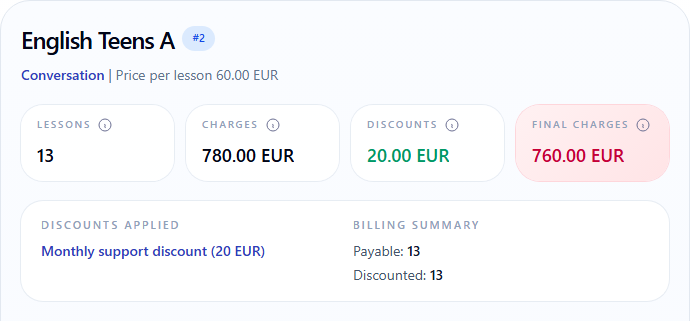
Follow one example: a 20 EUR discount per billing period assigned to Emma Brown's eligible lessons from 1 September 2026. Then check the October invoice: 780 EUR in charges becomes 760 EUR after the discount.
Review the value and calculation base
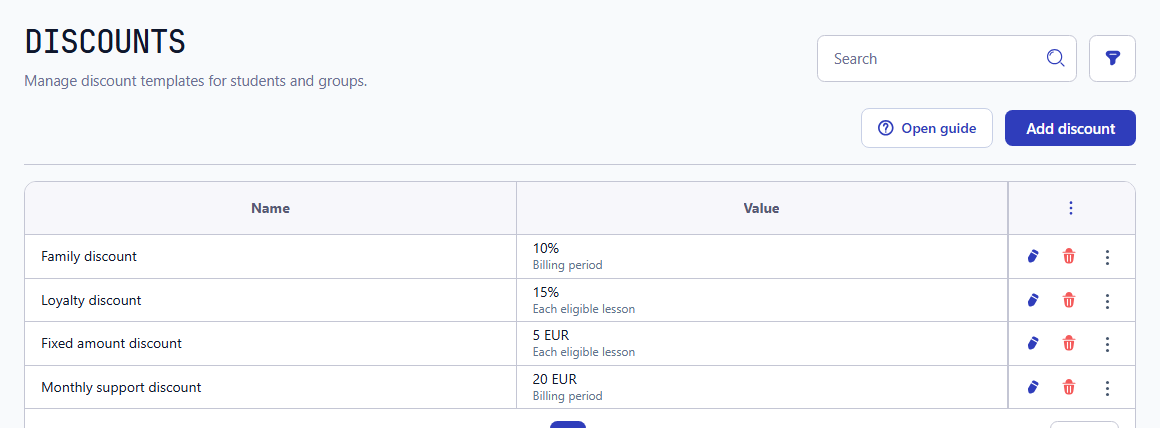
Open Discounts under Programs & Pricing. Read both the value and the calculation base beneath it before reusing a template: the same currency amount can mean a discount on each eligible lesson or one discount for the billing period.
- Family discount: 10%, Billing period.
- Loyalty discount: 15%, Each eligible lesson.
- Fixed amount discount: 5 EUR per lesson; Monthly support discount: 20 EUR per period.
Create the template
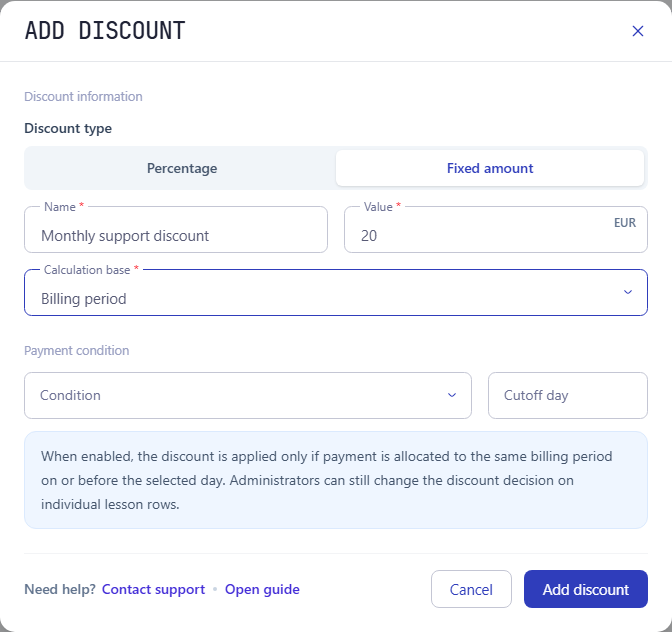
Select Add discount. Enter a name, choose Percentage or Fixed amount, and enter the value. Then choose the required Calculation base and select Add discount to save. In this example, Monthly support discount is 20 EUR with Billing period selected.
- Each eligible lesson: apply the configured value separately to each matching lesson charge.
- Billing period: apply it to the combined eligible charges for the period; a fixed amount is not repeated for every lesson.
- Percentage uses a value from 1 to 100; fixed amounts use your company's currency.
- This example has no payment condition. If you enable one, set Cutoff day: after that day, eligibility depends on a payment allocated to the same period on or before the deadline.
Choose the student and the lessons covered
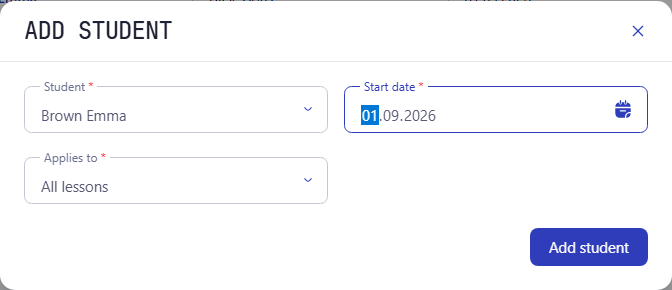
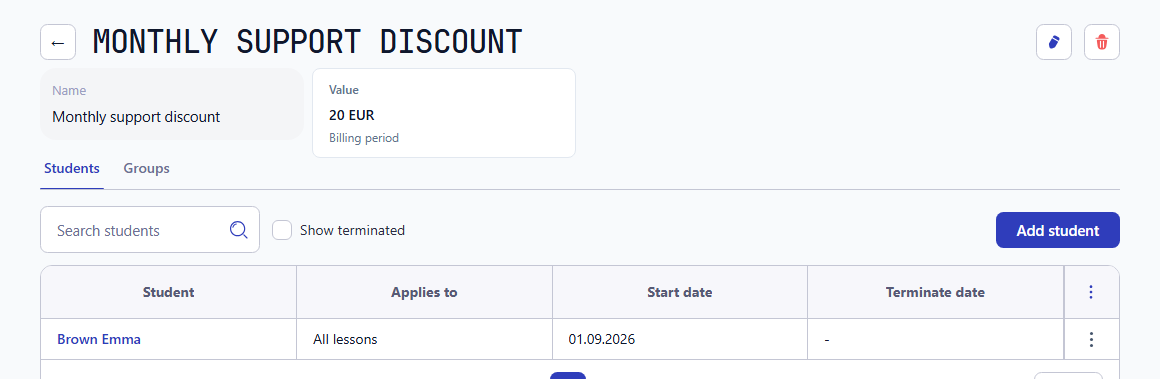
Select the Monthly support discount row to open its profile, then select Add student. Choose Emma Brown and set Start date to 1 September 2026. In Applies to, select All lessons, then select Add student to save the assignment. The 20 EUR period discount will cover Emma's eligible lessons from that date.
- All lessons covers the student's lessons that otherwise qualify for the discount.
- For a narrower assignment, choose One group or One course and select the required group or course. One course covers matching group and individual lessons.
- Alternatively, open the student's profile, choose Discounts, and select Add discount. The same scope choices are available there.
Confirm the scope and dates
Check Emma Brown's row in the assigned-students list: Applies to is All lessons and Start date is 1 September 2026. The template value is 20 EUR per billing period; the scope and dates belong to this student's assignment.
- Choose either a course or a group for one assignment, not both.
- The start and termination dates are inclusive: lessons on either date can qualify. They are separate from the calculation base.
- Use Show terminated to inspect past assignments. To change an assignment's scope, terminate it and create the replacement with the appropriate dates.
Verify the result in the invoice
Open the student's Invoices tab and select the period. In the demo, Emma Brown has 13 payable lessons at 60 EUR and a 20 EUR Billing period discount. The course block shows the original 780 EUR charge, 20 EUR discount, and 760 EUR final charges.
13 payable lessons x 60 EUR = 780 EUR
780 EUR - 20 EUR for the period = 760 EUR
Previous balance and payments are accounted for separately
20 EUR per period is not 20 EUR per lesson
For Emma's 13 eligible lessons, the configured 20 EUR is applied once for the billing period. The invoice may allocate this discount across lesson rows, but those rows do not each receive a separate 20 EUR discount. Always compare the template base with the period total.
780 EUR original charges - 20 EUR discount = 760 EUR final charges
Calculation and eligibility
Keep the value, calculation base, lesson scope and dates separate when checking a result.
How percentage and fixed amounts use the base
Percentage reduces eligible charges proportionally. A fixed discount uses a currency amount. Calculation base determines whether the system calculates that value lesson by lesson or over the eligible charges for the billing period.
- 5 EUR per lesson gives an 80 EUR discount across 16 eligible lessons.
- 20 EUR per period is one discount over the eligible period charges, not 20 EUR for each group or lesson.
- Scope, assignment dates, lesson discount permission, and any payment conditions still determine eligibility.
- A discount cannot reduce an eligible charge below zero. If several discounts are assigned, Apply always combines them; Apply if biggest selects the more beneficial eligible option.
A course restriction does not change other courses
If you choose One course instead of All lessons, the discount covers only that student's lessons in the selected course. One group limits it to lessons in that group. Other assignments can still apply their own discounts outside this scope.
- Course refers to the course recorded for the lesson, including individual lessons without a group.
- Check the assignment's Applies to column rather than relying on the template name.
- Selecting a group for one student is not the same as assigning a discount to all students in that group.
- If Applies to is missing, ask the owner to check active services: group and course restrictions require the corresponding service.
If the discount is missing or unexpected
Check the source settings before changing an invoice. Confirm the template value and base, then the assignment scope and dates, and finally the lesson's billing treatment and permission to apply discounts. Payment conditions, if configured, must also be met.
- A free lesson does not create a payable charge to discount.
- A course-specific assignment does not cover lessons of a different course.
- A period-based amount should be checked against the total eligible period charges, not multiplied by the lesson count.