
Group class or private lesson
Select a group for a class, or an individual student and lesson type for a private lesson.
Plan group classes and private lessons in one timetable. Coordinate tutors and rooms, repeat your teaching week, and check changes before publishing.
Try the scheduling workflow with demo data.
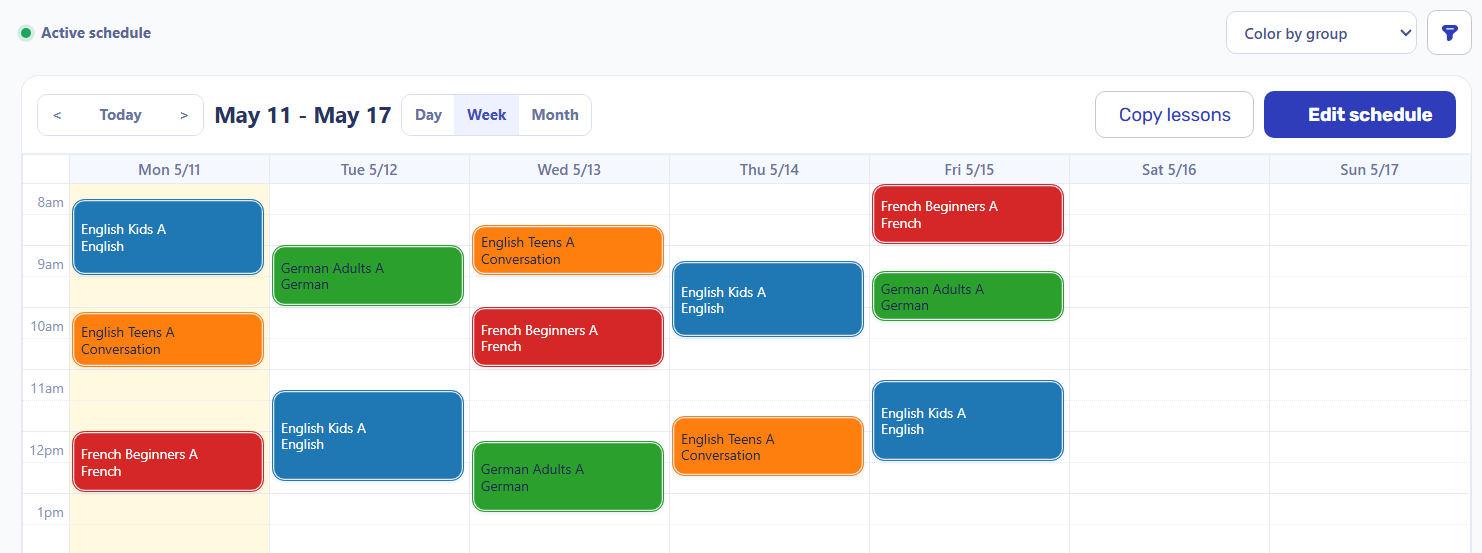
A tutoring center may run a group class and several private lessons on the same evening. Keep every tutor's lessons in one calendar so an administrator can review the whole plan.
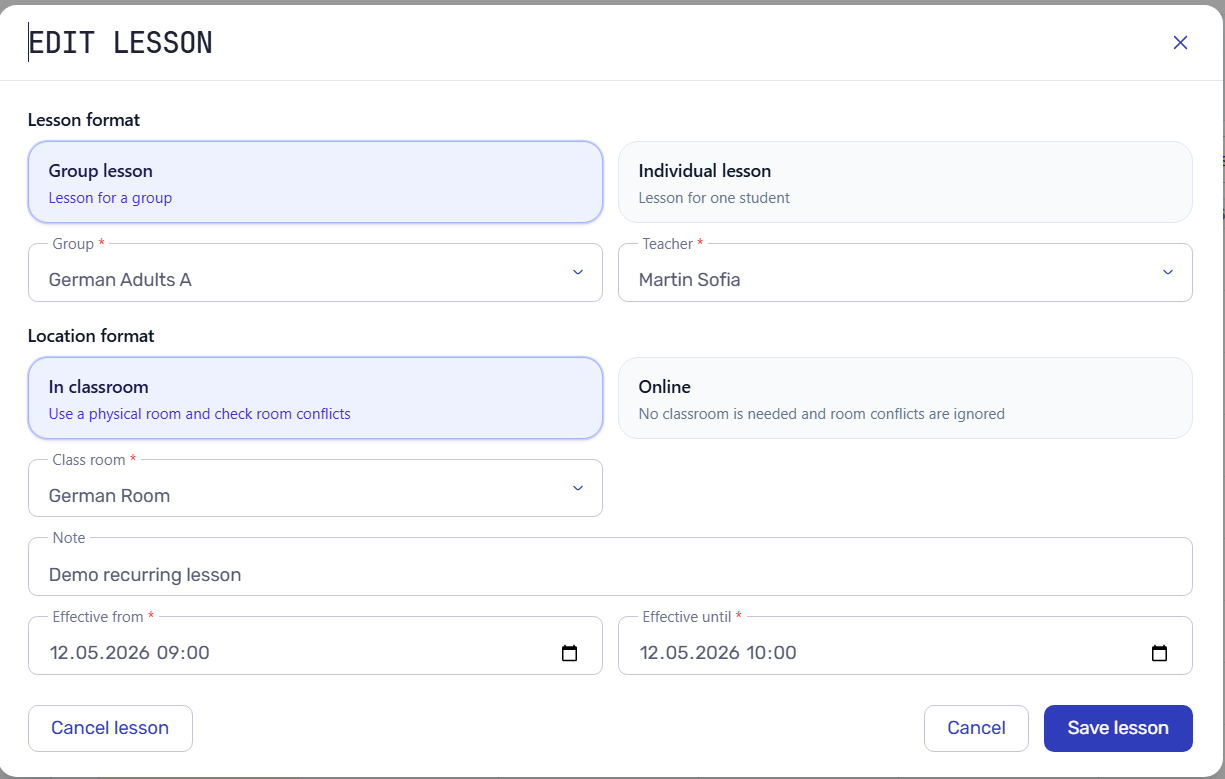
Select a group for a class, or an individual student and lesson type for a private lesson.
Assign the tutor, date, time and classroom or online format for the lesson.
Check the group price or the selected individual lesson type before the timetable is published and initial charges are created.
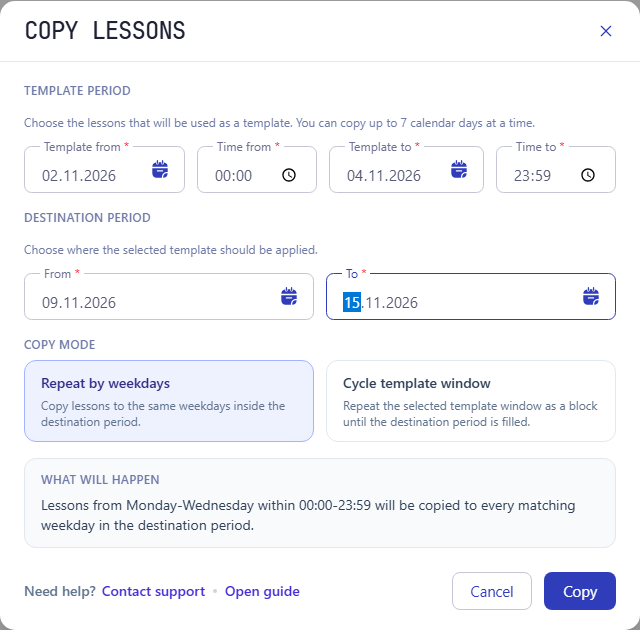
Copy a pattern of up to seven calendar days into the next period. Example for November 2026: the 2–4 November template (three calendar days) contains one lesson on Tuesday 3 November, 18:00–19:00 UTC. Copy it into 9–15 November.
Keep lessons on the same weekdays throughout the destination period. This example creates one lesson on Tuesday 10 November, 18:00–19:00 UTC.
Repeat the selected template as a block, starting at the beginning of the destination period. With this three-day pattern, lessons fall on Tuesday 10 and Friday 13 November, both 18:00–19:00 UTC.
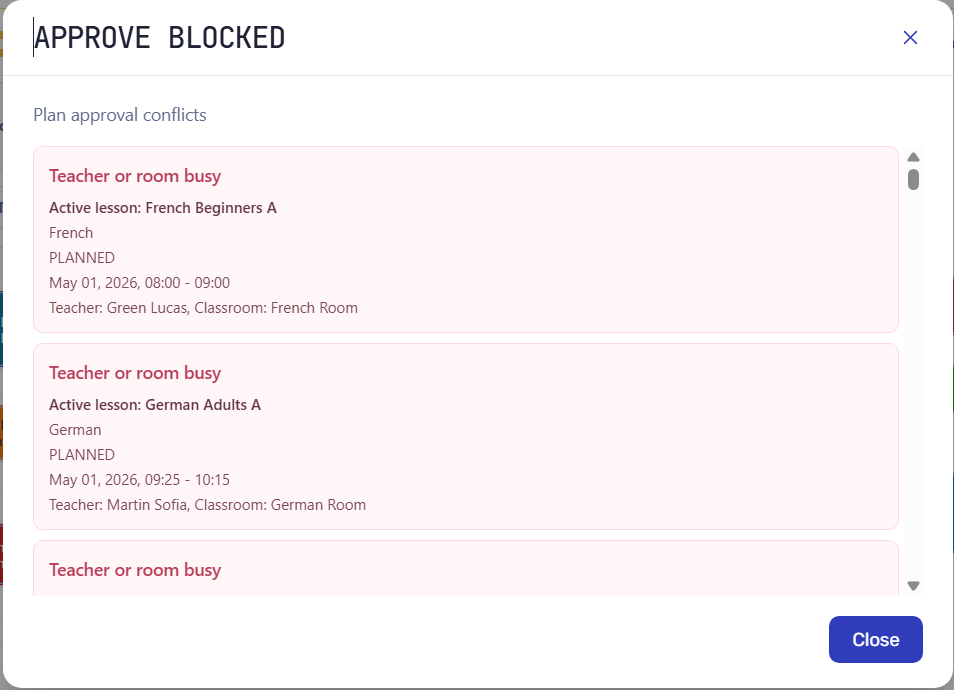
Review instructor schedules and room bookings before publishing. If a teacher or classroom is double booked, the approval check identifies the overlap so you can adjust the plan.
Move the private lesson to a different time or choose another teacher. For a classroom conflict, adjust the time or room. Check again, then approve the finished schedule.
A schedule version gives administrators room to prepare changes while the current timetable stays available. Apply the checked version when it is ready for daily work.
Create, edit or copy lessons in a separate version. Check the groups, teachers, rooms and dates.
Resolve conflicts, then publish the version. The lessons enter the active schedule and initial student charges are created.
Open the published lesson and student invoice. Later attendance and billing treatment can adjust the charge; staff then review invoices and record received payments.
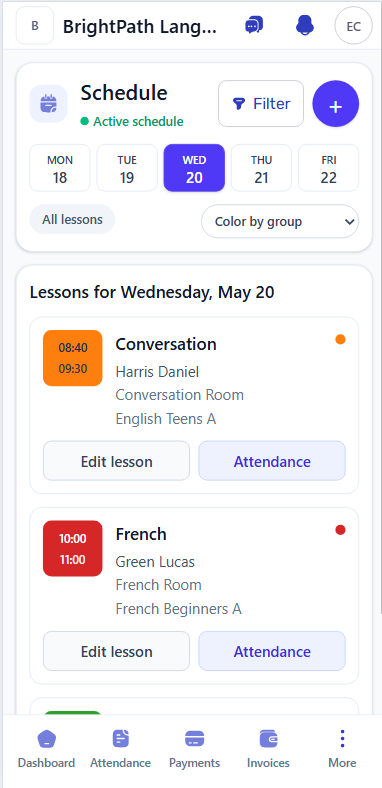
Staff can open the daily lesson schedule in a phone's browser, review a lesson and move to attendance. Invited students see their own published lessons in the student portal.
Check today's lessons and open the details when working away from the administrator's desk.
Give an invited student access to their own timetable and lesson history through the student portal.
See the real scheduling workflow: prepare a lesson, resolve a conflict, publish the plan, then check the related student invoice and teacher payout.
Class Scheduling Software for Language Schools | Conflicts, Billing & Payouts
Explore the next step
Choose a practical guide or a complete school scenario.
Follow the steps for creating, copying, checking and applying lessons.
Compare a shared lesson workflow with separate calendars and invoicing tools.
Follow tutoring sessions through attendance, invoices, payments and tutor payouts.
See how regular classes, attendance and student billing work together.
Language schools, tutoring centers and other lesson-based training businesses can plan group classes and private lessons. Try a typical teaching week, including the teachers and rooms your team shares.
Yes. Work in a separate schedule version, review the changes and choose Approve and apply when the plan is ready. Staff and students then use the published lessons.
Yes. Select the lesson's classroom or online format while setting its teacher, group or student, date and time. Classroom lessons include a room for the scheduling check.
Initial charges are created when the schedule is published. Attendance records whether a student was present; billing treatment determines whether the lesson is chargeable. Staff can check the resulting lesson rows in the student's invoice.
Plan classes, coordinate tutors and rooms, and publish a schedule your school can work from. Explore the demo or start your own workspace.