
How to Use Your Student Portal
Step-by-step instructions for signing in and reviewing lessons, attendance, sent invoices, payment history, groups, discounts, and profile details.
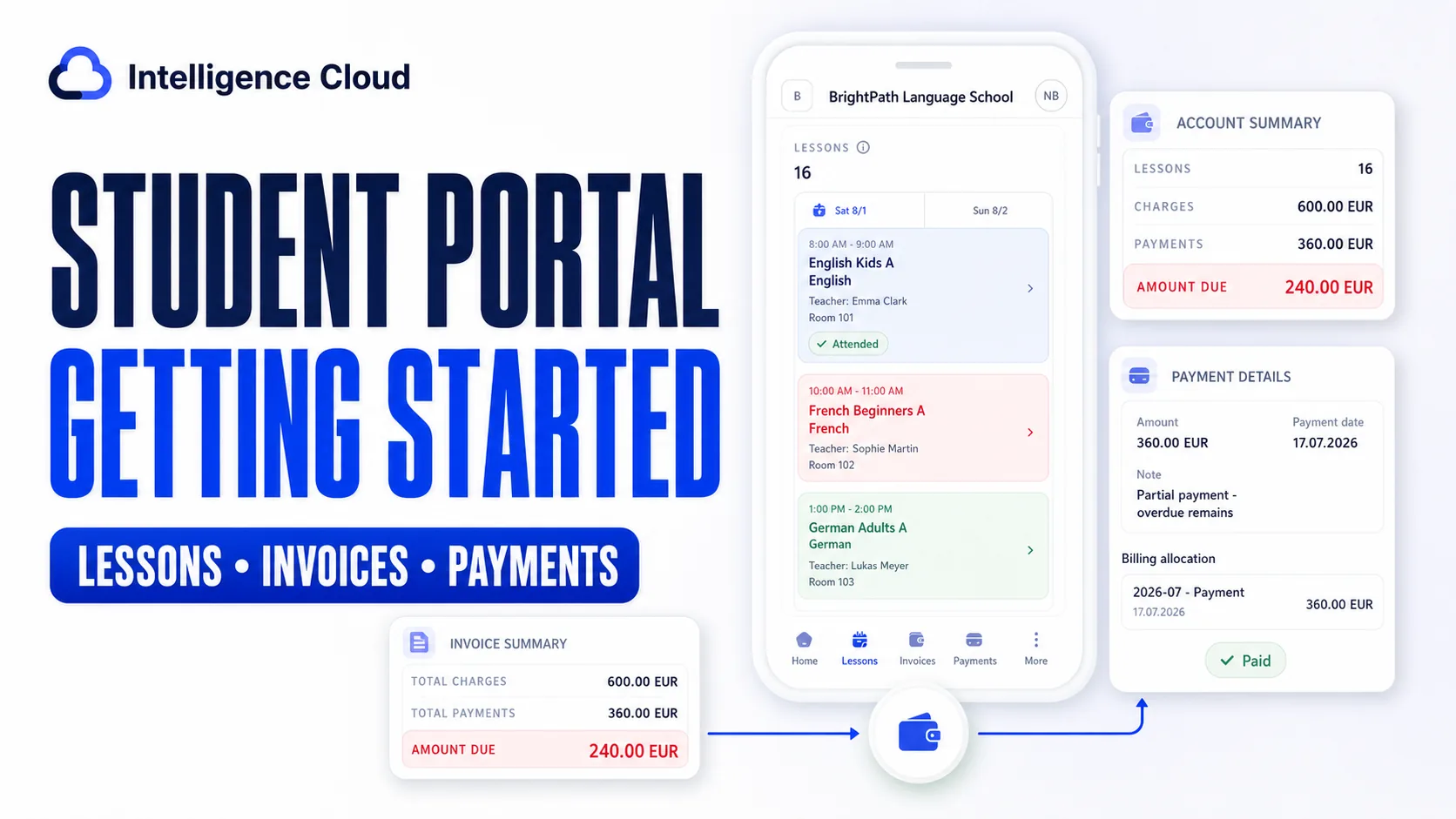
The Intelligence Cloud student portal gives you secure access to records that your school already manages. You can review your own lessons, attendance, invoices sent by the school, payment history, groups, discounts, and profile details without asking the administrator for a separate copy.
You cannot create an account from a public registration page. Your school must send an invitation to the email address in your student profile.
Before you begin
You need:
- an invitation email sent by your school;
- access to the email address that received the invitation;
- a password created from the invitation link;
- the student portal address provided by your school.
If the invitation is missing or no longer works, contact your school. An administrator can check the address and resend the invitation from your existing student profile.
Create your password and sign in
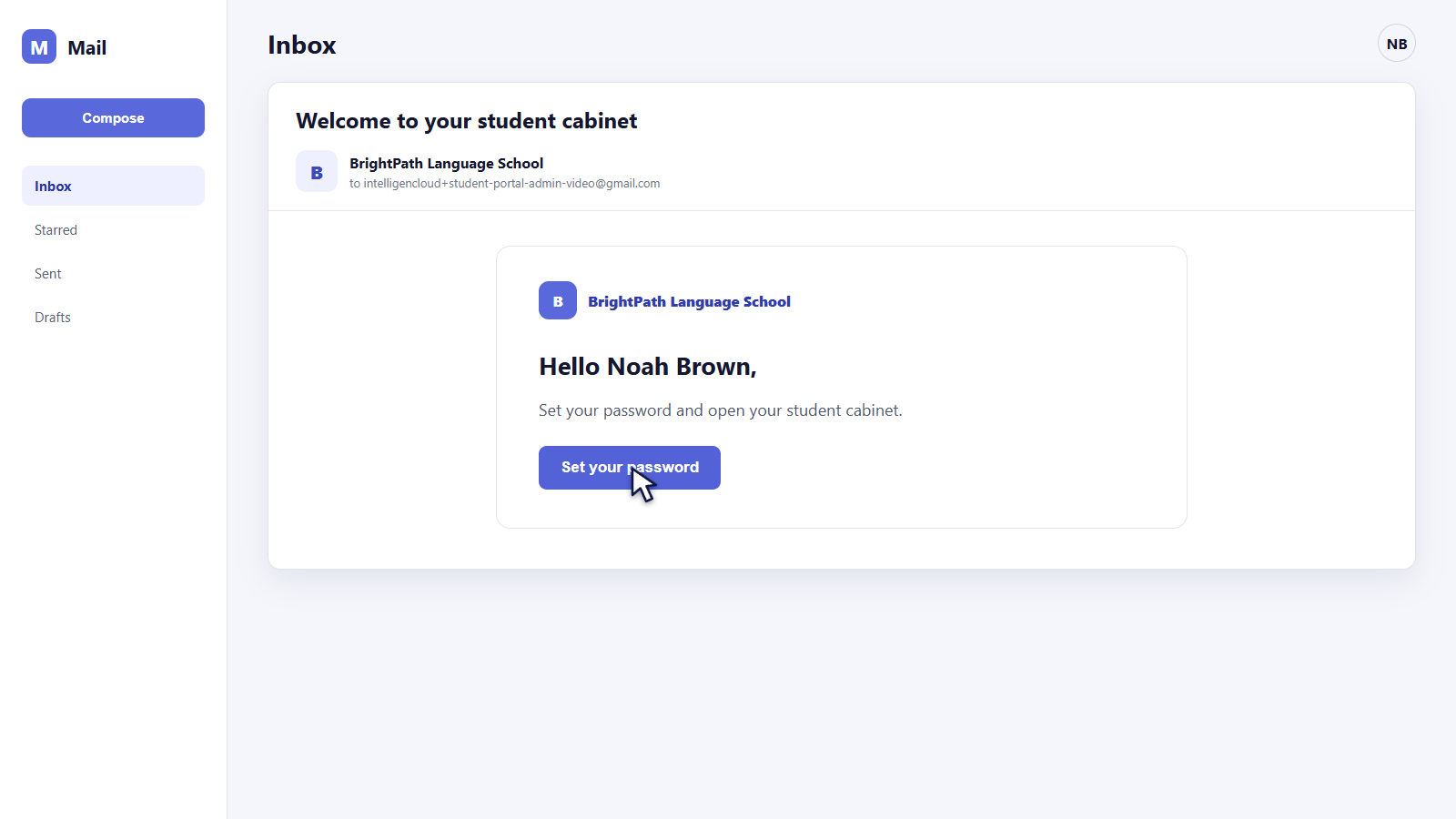
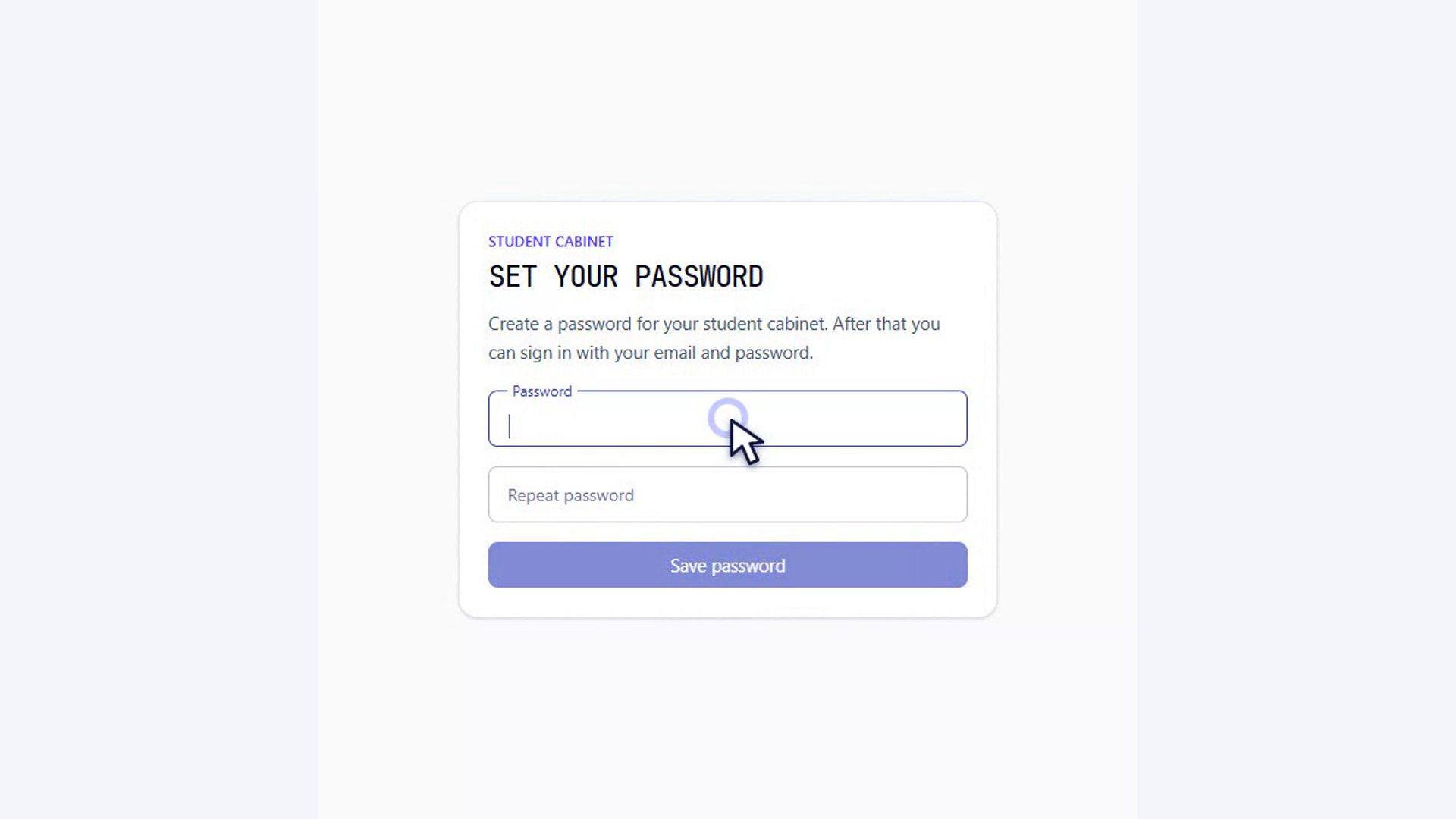
Open the invitation email and follow its link. Enter and confirm a new password, then save it. After setup, sign in with the same email address that received the invitation and the password you created.
The school controls access to the account. If sign-in stops working after it previously worked, ask the school to check whether your portal access is still active.
Use the portal navigation
On a phone, the main navigation stays at the bottom of the screen:
- Home provides the starting view;
- Lessons shows scheduled and completed lessons;
- Invoices shows invoices sent by the school;
- Payments shows payments already recorded by the school;
- More opens your groups, discounts, and profile.
The portal is a read-only view of school-managed operational records. It is not a public enrollment form or an online payment checkout.
Review lessons and attendance
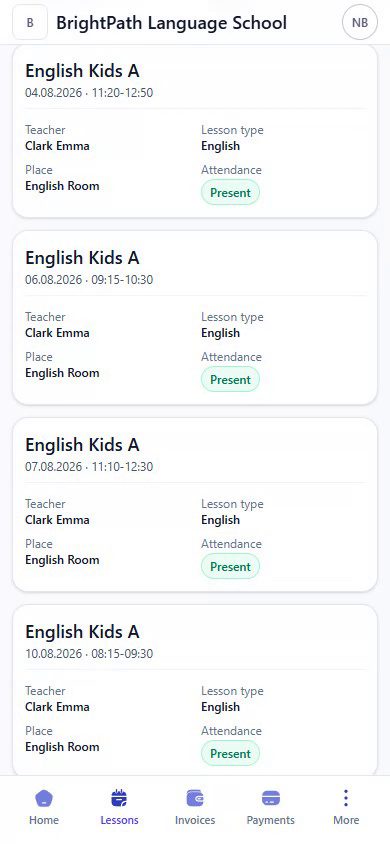
Open Lessons to see the lesson records available for your account. Each card can include the group, date and time, teacher, lesson type, place, and attendance outcome.
Attendance appears in the lesson where the school recorded it. If a lesson, teacher, room, or attendance status looks incorrect, contact the school. Students cannot rewrite operational records from the portal.
Find an invoice for the right period
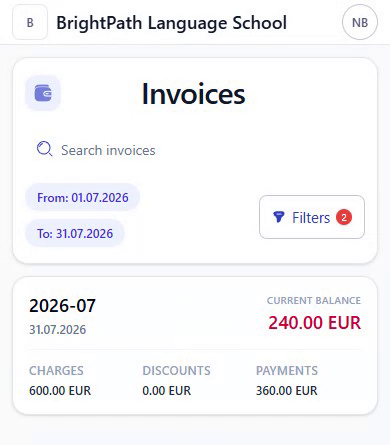
Open Invoices. The page initially uses a date range, so an empty list may simply mean that the school has not sent an invoice for the selected period.
Use Filters to choose the month or dates you need. In the example below, the current period has no invoice, but changing the range to July reveals the invoice sent by the school.
Only invoices sent by the school are available. A draft or unsent invoice that the school is still reviewing will not appear in the student portal.
Understand the invoice details and download the PDF
Open an invoice to review how the total was formed. Depending on the school's records, the page can show:
- the invoice period and current balance;
- previous balance carried into the period;
- lesson charges and discounts;
- payments applied to the invoice;
- the amount still due;
- group balances and the individual lesson rows behind the charges.
In the video example, the July invoice contains 16 lessons, 600 EUR in charges, 360 EUR in recorded payments, and 240 EUR still due. These amounts explain the state recorded by the school; the portal does not collect a new payment.
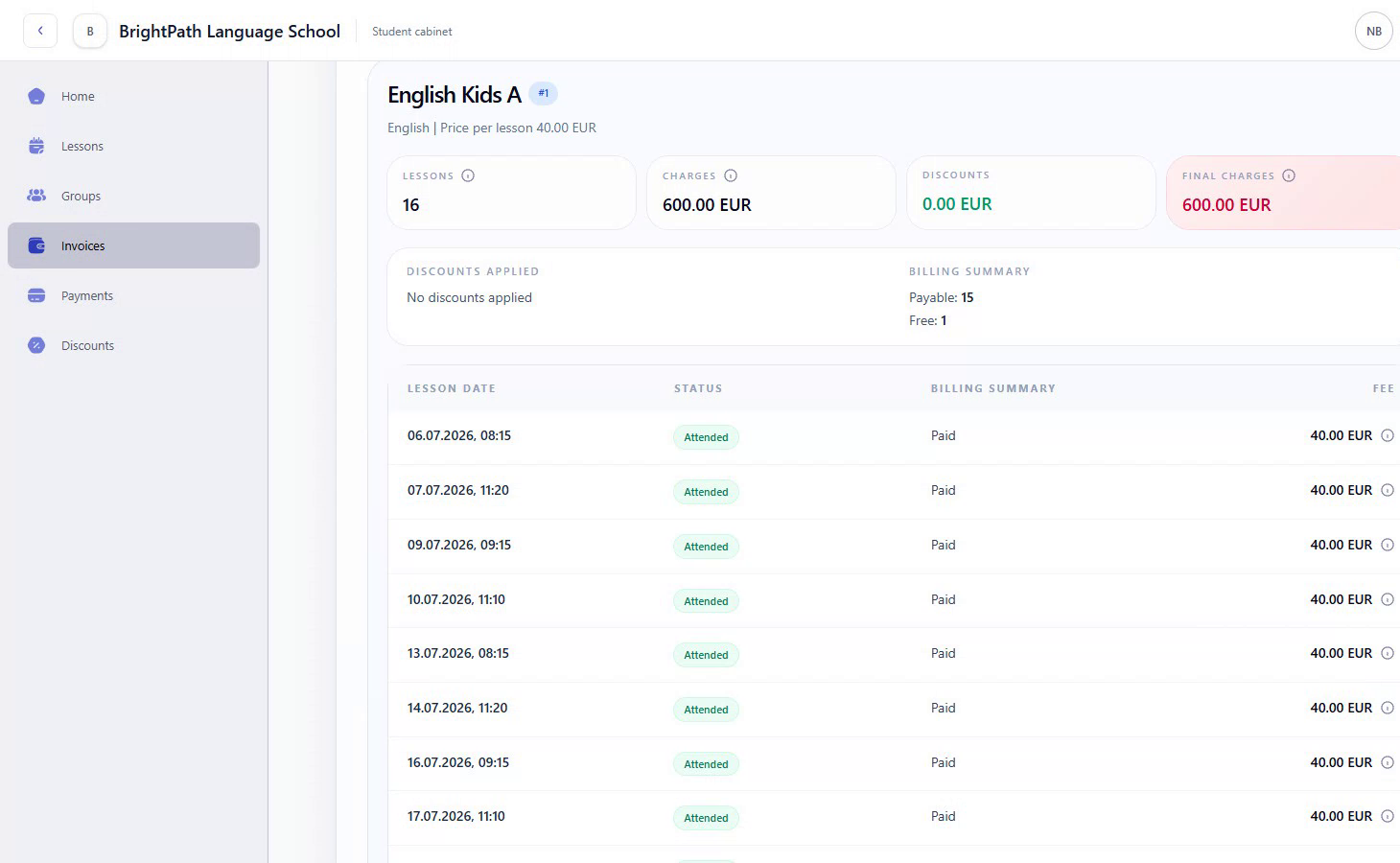
Use Download PDF when you need the invoice document sent by the school. On a larger screen, the wider table can make individual lesson rows easier to compare.
Review payment history and billing allocation
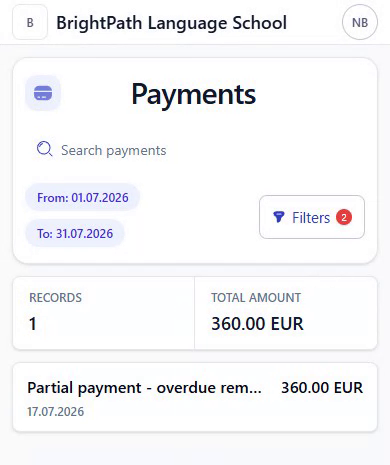
Open Payments to see payments already recorded by the school. As with invoices, change the date filters if the current period is empty.
Select a payment to review its amount, payment date, note, and Billing allocation. The allocation shows which billing record received the payment. It helps explain why a payment can exist while an amount is still due on an invoice.
The presence of a payment in this list means the school recorded it. It does not mean the student portal processed the payment online.
Review groups, discounts, and your profile
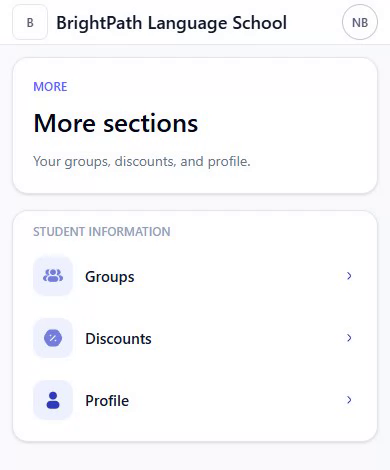
Open More to reach additional student information:
- Groups lists the groups connected to your student record;
- Discounts shows discounts assigned by the school;
- Profile shows your contact and account details.
You can add or replace your profile photo. If your name, email, phone number, address, group, or discount is wrong, contact the school so an authorized employee can correct the source record.
Troubleshooting
I did not receive an invitation
Check the spam folder and confirm which email address the school has on your profile. Ask the administrator to resend the invitation instead of creating another student record.
The invoice or payment list is empty
Open Filters and check the selected date range. The portal starts with a limited period and does not automatically show every historical record.
An attendance, invoice, payment, or profile value is incorrect
Contact your school and identify the exact lesson, invoice period, payment date, or profile field. The portal displays school-managed records and does not let students edit financial or attendance history.
I can no longer sign in
Ask the school to check your access status. Administrators can verify activation, resend an invitation, deactivate access, or invite you again by following the guide to manage student portal access.
For a broader explanation of how lessons, attendance, invoices, and payment history reach the student account, see student portal software.
Related resources
How to send student invoices by email
Learn how Intelligence Cloud sends student invoice PDFs by email, uses invoice due dates, and inserts school payment details into the message.
How payment details profiles work
Learn how Intelligence Cloud uses payment details profiles so different students can receive different payment instructions in invoice emails and PDFs.
How to Invite Students to the Student Portal and Manage Access
Step-by-step instructions for inviting a student, checking activation, resending an invitation, deactivating access, and inviting the student again.