
How to configure company settings
Set the school name, country, currency, time zone, date format, invoice due dates, and payment instructions before daily work begins.
Open Company settings → General info before entering prices, building a lesson schedule, or preparing student invoices. These settings apply to the school workspace.
Open and edit the general settings
- Sign in with an account that has permission to view company settings.
- Open Company settings and select General info.
- Click the edit icon beside the field you want to change.
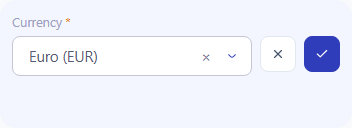
- Enter a value or select an option, then click the save icon for that field. Use cancel to discard the edit.
- After saving, reopen the page and verify the stored value.
There is no single save button for the whole page. Save each edit before moving to the next field.
Set the school name and logo
Edit Company name so staff recognize the workspace. Use the logo card's replace action to upload a JPG, PNG, or WebP image; use its remove action to remove the current logo. Registration date is displayed for reference and is not an editable school setting.
Choose country, currency, time zone, and date format
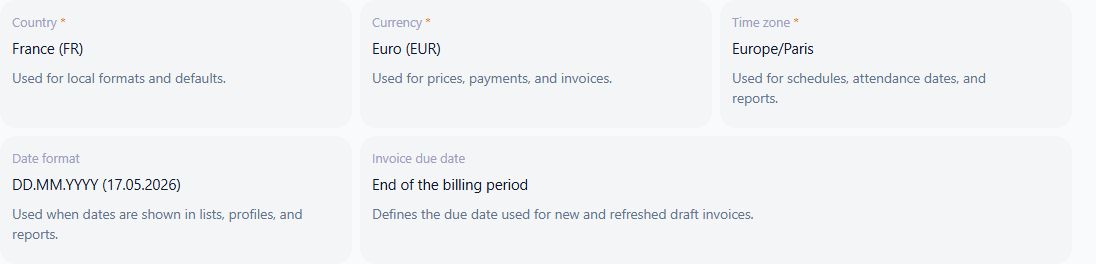
Start with Country, then review all four fields:
- Country identifies the school's country and supplies a suggested currency. Selecting a country can also suggest the browser's time zone if it is available in the time-zone list.
- Currency is the company's currency for school prices, invoices, payments, and financial amounts. Verify the actual currency code, such as EUR or UAH.
- Time zone determines the school's local time for scheduling and dated operational records. Select the school's time zone explicitly, such as
Europe/KyivorEurope/Paris, even when your browser is elsewhere. - Date format controls the presentation of dates. Choose the example that matches the school's usual format.
Country selection provides initial values; check the resulting currency and time zone before saving. An existing date format is retained when the country changes, so review it separately.
The interface language changes labels and the way amounts are displayed. It does not select another currency or convert money. Changing the company currency is not a currency-exchange operation. Configure the company currency before setting lesson prices and recording payments.
Choose the time zone before creating lessons. A date format changes how a date looks; a time zone affects the local lesson time and calendar date. After a time-zone correction, check an existing lesson and its attendance date rather than assuming the schedule will retain the same displayed time.
Confirm the basic settings
If the page shows Complete required settings, fill in and save Country, Currency, Time zone, and Date format. The action opens the first missing field.
When all four values are saved, review them and click Confirm settings. The confirmation notice disappears after confirmation. Saving the fields and confirming them are separate steps.
Set invoice due dates and payment instructions
Edit Invoice due date and choose the policy used for new invoices and updated invoice drafts:
- End of the billing period;
- Days after issue, with a number from 0 to 365;
- Fixed day of the billing period, with a day from 1 to 31.
Save the policy, then check the due date in an invoice draft. Review the date shown on an issued invoice before sending it.
In Payment details, enter the instructions students need to pay: recipient, bank or payment account, and payment reference. Save the text. This is the company's default payment instruction text. If different students need different instructions, use payment details profiles when that service is available.
For sending invoices and checking delivery, follow the invoice email guide.
Check services
The company owner can open Active services to review the services available to the school. The table shows the service code and name, active dates, and current price. The information icon beside a name opens its description.
This tab displays service information; it has no switch for enabling or disabling a service. If the required service is absent, use the application's help action to contact support.
Available tabs depend on account permissions and services. General info requires company-settings viewing permission; Access control requires user-viewing permission. Active services, Email templates, and Payment details are owner tabs, and Payment details also requires the payment details profiles service.
The Service payments and Invoices tabs inside Company settings currently show Implementation in progress. Student invoices and payments are handled in the financial sections described in the invoice and payment manuals.
Continue with staff and email setup
Use Access control to add employees or grant access to existing teachers. Open Email templates to configure invitation and invoice messages.
Before daily work, reopen General info, check all four basic settings, verify a lesson's local time, and inspect the currency, due date, and payment instructions in an invoice draft.
Related resources
How payment details profiles work
Learn how Intelligence Cloud uses payment details profiles so different students can receive different payment instructions in invoice emails and PDFs.
How to Add Employees and Teachers and Manage Access
Add employees or teachers to Intelligence Cloud, assign the right access, and manage invitations without exposing unrelated school data.
How to Configure Email Templates for Invoices and Access Invitations
Step-by-step instructions for customizing student invoice emails, student portal invitations, and staff access invitations in Intelligence Cloud.