
How Teachers Review Lessons, Mark Attendance, and Check Payouts
Sign in with a teacher account, review the personal schedule, record lesson attendance, and check calculated teacher payouts.
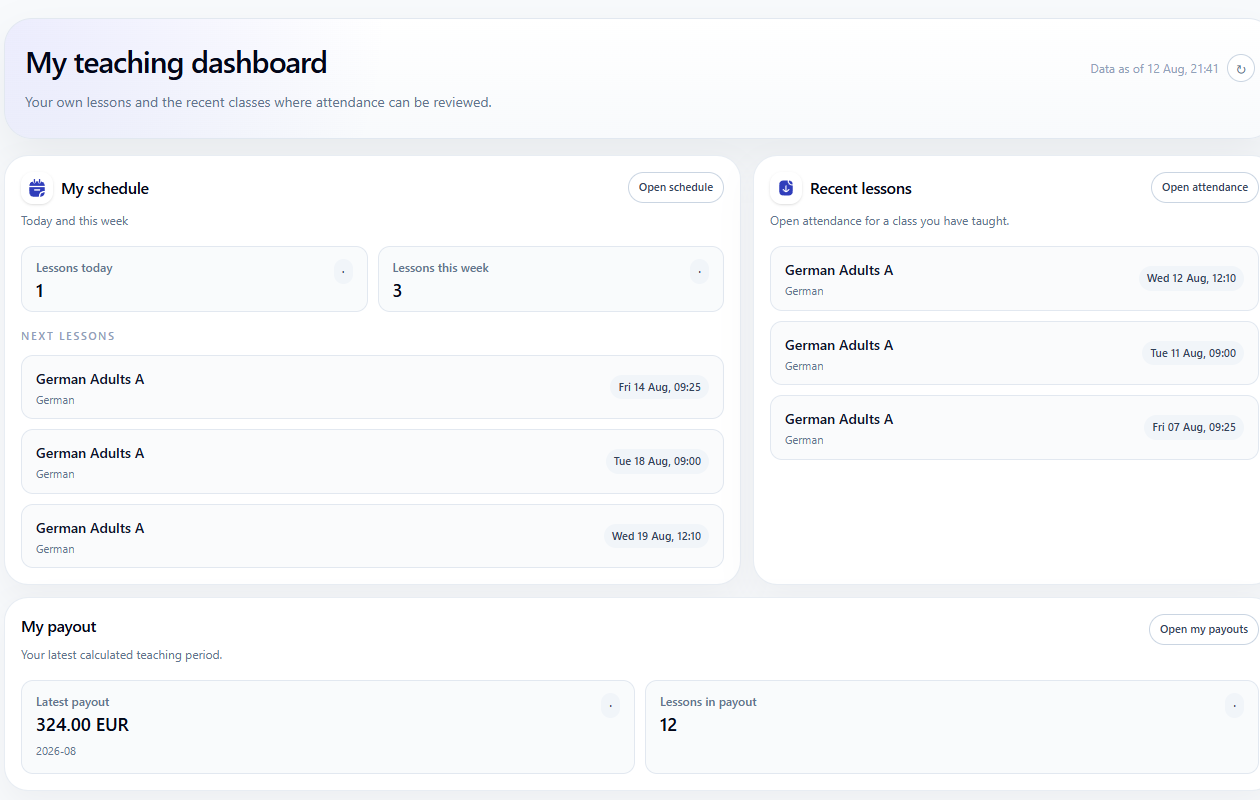
The Intelligence Cloud teacher account is a restricted working view. It gives a teacher access to the information they need for their own teaching work without opening the school's full student directory, billing administration, or unrelated employee data.
This guide starts after a school administrator has linked the account to a teacher profile and sent the invitation. Administrators can follow how to grant teacher access.
Create a password from the invitation
Open the latest setup link in the staff invitation email. Enter the same new password in Password and Repeat password, then click Save password.
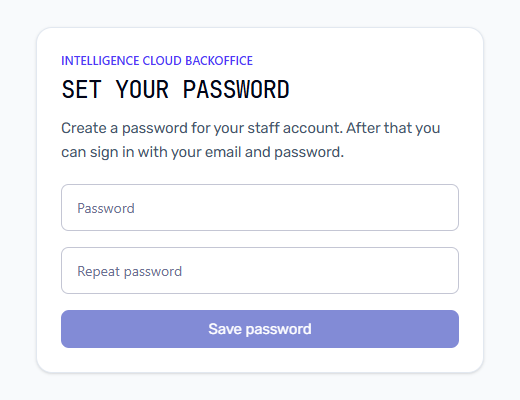
The setup link is single-use. If the page says that the link is invalid or expired, ask the school administrator to use Resend invitation. Do not ask the administrator to create another teacher profile.
After setup, open the regular backoffice sign-in page and use the invited email address and the password you created.
Start from My teaching dashboard
The first screen summarizes only the signed-in teacher's work:
- lessons scheduled for today and the current week;
- the next assigned lessons;
- recent lessons whose attendance can be reviewed;
- the latest calculated payout and the number of included lessons.
On a phone, the same information is arranged as stacked cards with persistent navigation to Dashboard, Attendance, and More.
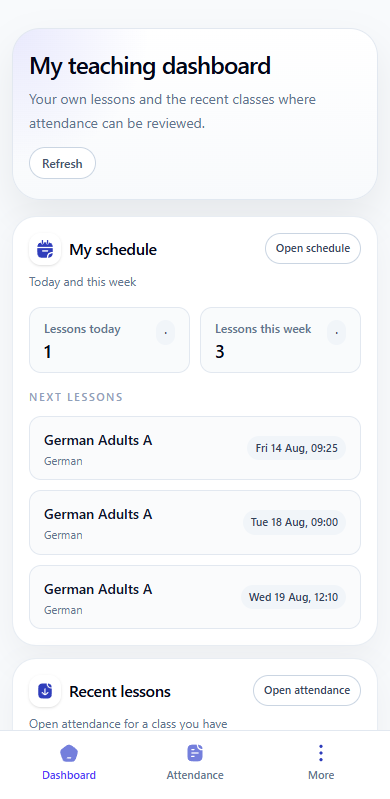
Use Open schedule when you need the calendar context. Use Open attendance next to a recent lesson when the attendance for that class needs review.
Review your assigned schedule
Open Schedule to see only the lessons assigned to the teacher account. The desktop calendar supports day, week, month, and list views.
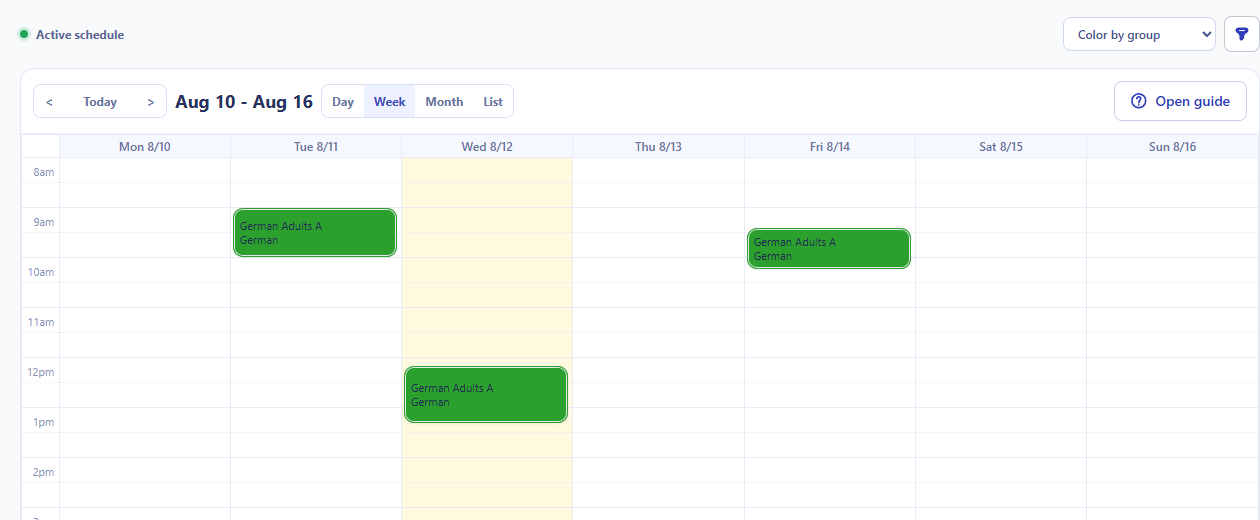
The mobile view shows one selected day at a time. Open Attendance from a lesson card when you need to record the result for that class.
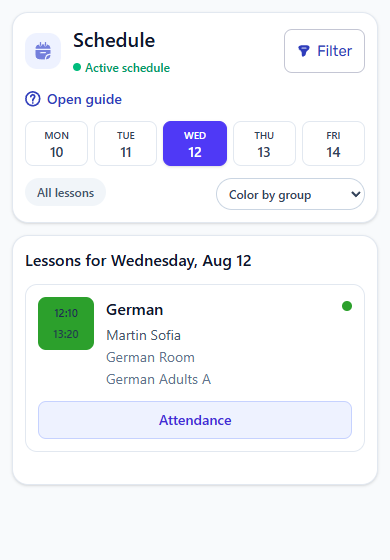
The teacher account is intended to consume the schedule prepared by the school. Changes to courses, groups, rooms, prices, or the broader timetable remain administrative work unless the account also has a separate employee role. A Teacher account itself cannot be combined with employee roles.
Mark student attendance
Open Attendance and select the lesson date. The journal displays students only for lessons taught by the signed-in teacher.
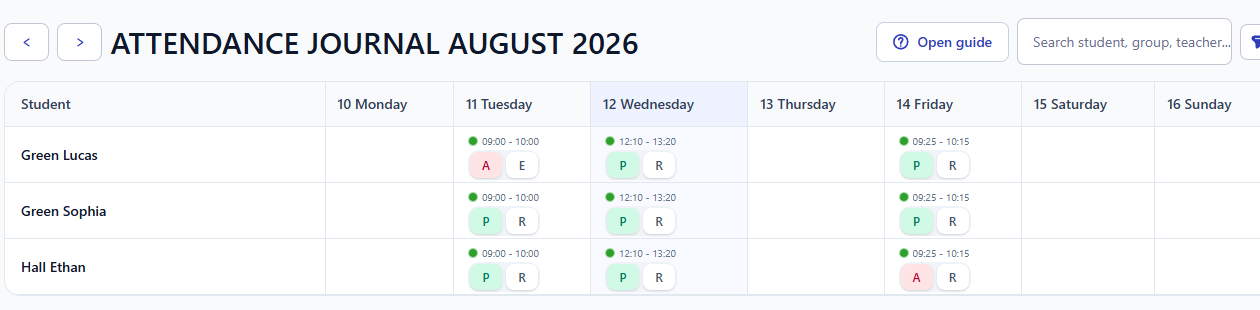
For each student:
- Set the attendance status to Present or Absent.
- If the school has enabled additional absence treatment, select the appropriate billing treatment.
- Read the summary under the student to confirm how the selected result is treated.
- Continue with the remaining students in the lesson.
The quick controls use P for present and A for absent. Billing-treatment shortcuts can include R for regular billing, E for an excused absence with no charge, or T for a transfer treatment when those services are available to the school.
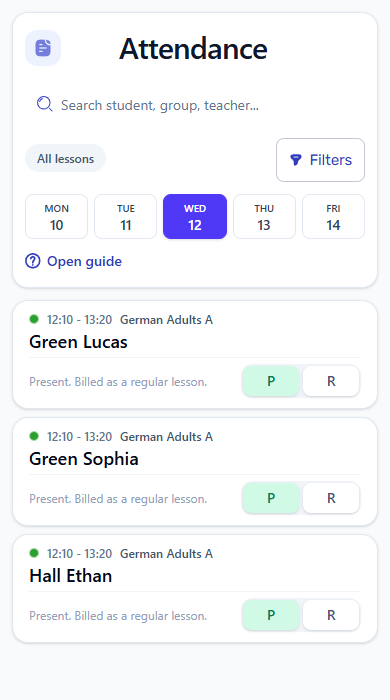
Attendance is an operational record, not only a visual checkmark. The selected status and treatment can affect student billing and the lesson records used for teacher payout calculation. If a mark is corrected later, the connected calculations can be refreshed from the corrected source record.
Check your payout statement
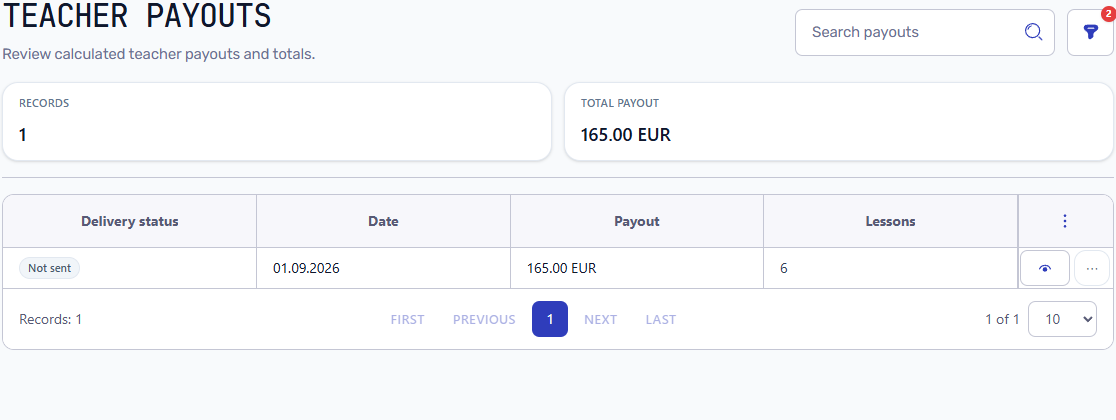
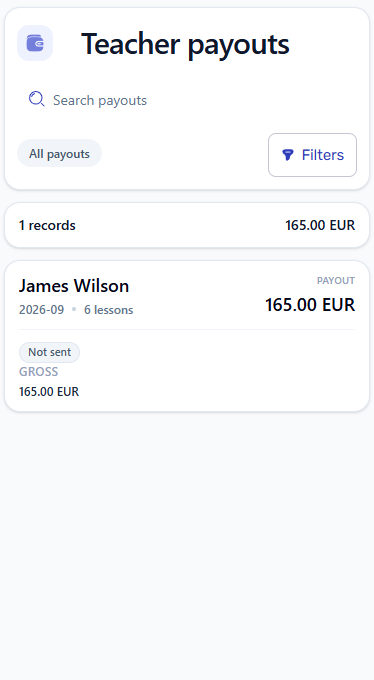
Open More -> Teacher payouts or use Open my payouts on the dashboard. The list shows each calculated period, total payout, and lesson count for the signed-in teacher.
The following payout example uses a separate demonstration teacher, James Wilson: 165 EUR for September, with six lessons in total, five payable and one canceled.
Open the statement to review its total and separate blocks for group and individual lessons. James's Conversation B1 group contributes 105 EUR; Mia Turner's individual lessons contribute 60 EUR. Each block keeps its course, rate, lesson counts and subtotal together. Canceled lessons remain visible at zero.
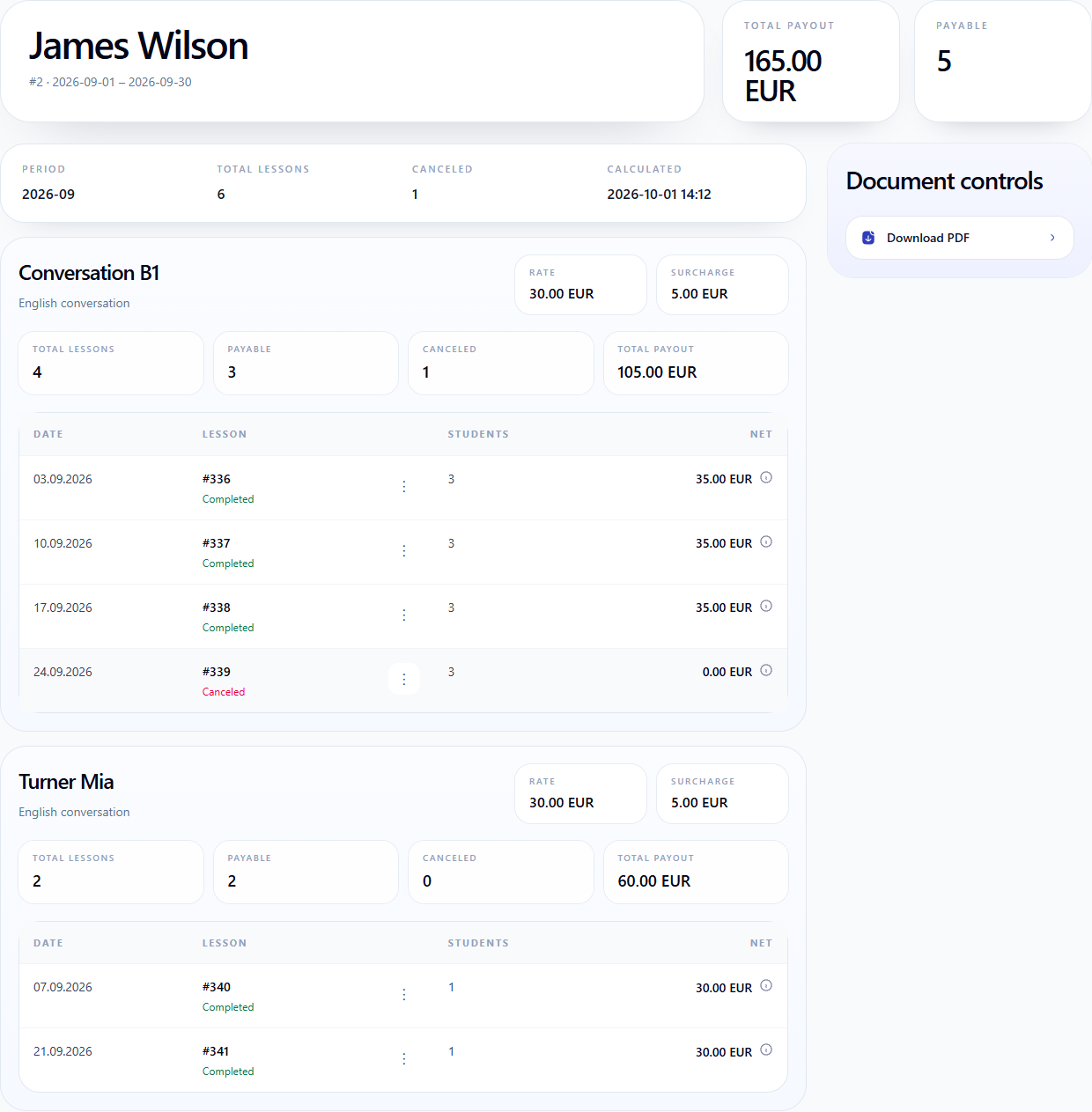
Select the information icon next to a lesson amount to open Payout calculation. It explains the base rate, student count, extra-student supplement, any adjustment and the resulting amount. You can download the PDF, but the Teacher account cannot change school-wide payout rules or manage statement delivery.
Not sent is the statement's delivery status. It does not indicate whether the school has paid the teacher.
If the amount is unexpected, compare the lesson date, status, attendance and rate. Ask the administrator to check the underlying records. For a worked calculation, see how to calculate and explain teacher payouts.
What the Teacher account cannot open
Teacher access is deliberately limited. It does not open:
- the full student or teacher directory;
- school-wide invoices, payments, or student balances;
- company settings and staff access management;
- catalog, pricing, or discount administration;
- payout statements belonging to other teachers.
These boundaries let teachers enter attendance at the source and review why they are paid a particular amount while the school retains control over students, billing, pricing, and company administration.
For the business relationship between attendance, student invoices, and teacher payouts, continue with student attendance tracking and billing software and teacher payout software for completed lessons.
Related resources
Attendance tracking and billing for training centers
Learn when training centers, language schools, and tutoring centers need attendance records connected to scheduling, billing, invoices, payments, teacher payouts, and reports.
Calculate Teacher Payouts from Completed Lessons
Learn how training centers, language schools, and tutoring centers can calculate teacher payouts from completed lessons, rates, attendance, cancellations, and payout statements.
How to Grant a Teacher Access to the School Backoffice
Connect an existing teacher profile to a restricted staff account, send the invitation, and manage activation, blocking, and removal.